

Connect Tuyo to Claude
Add Tuyo to Claude, approve access on your phone, and ask about your account.
Use Claude in your browser to set up the connection. On a work account, your organization may need to add Tuyo first.
Quick text guide
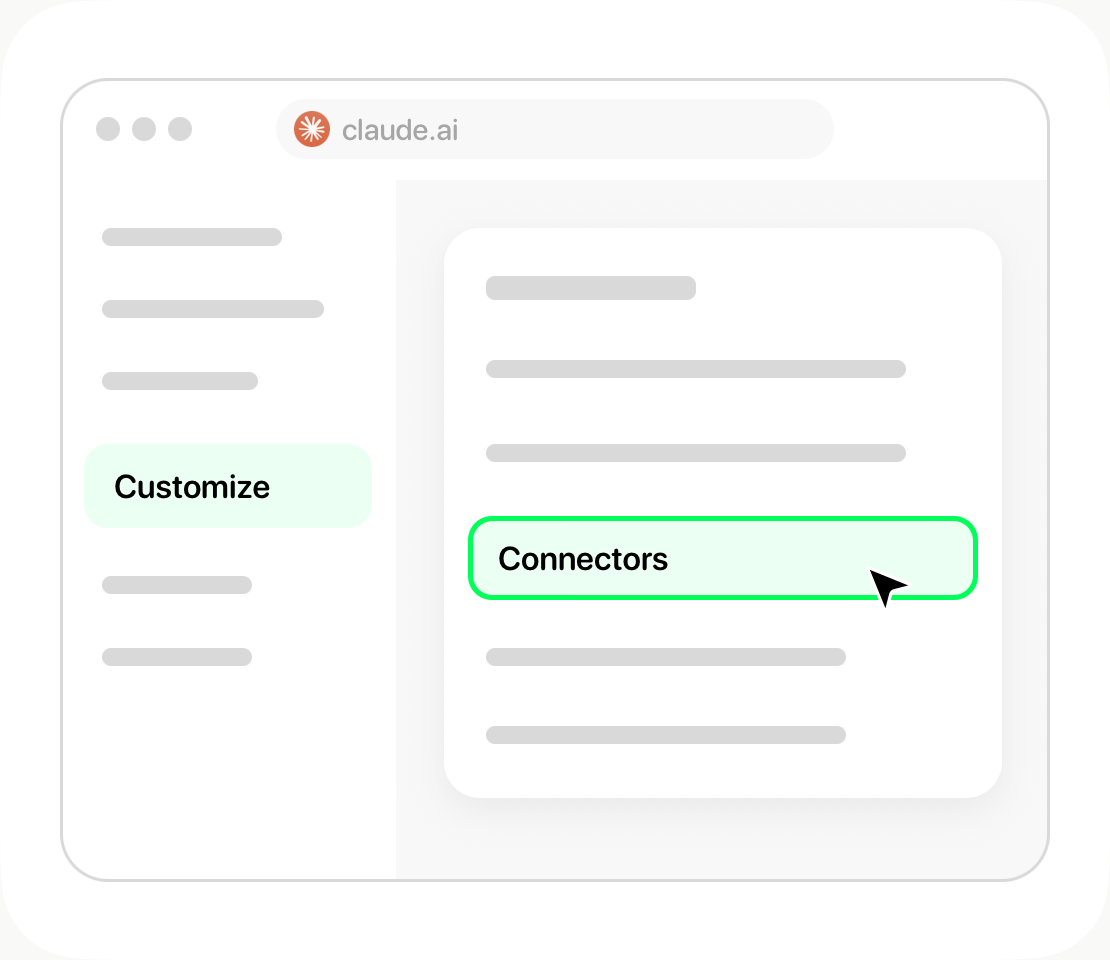
- Open Claude, then Customize → Connectors.
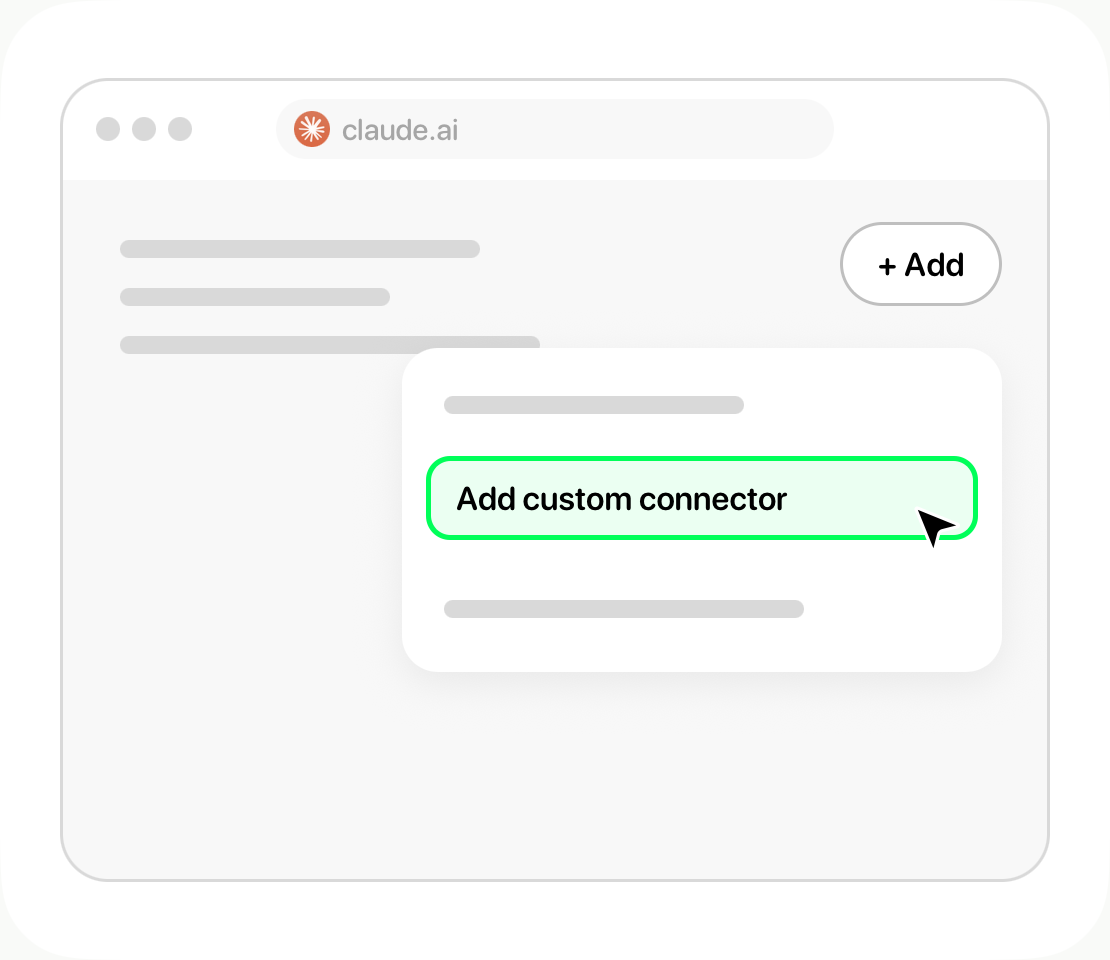
- Choose + Add → Add custom connector.
- Name it Tuyo and enter https://mcp.tuyo.com/mcp as the MCP server URL.
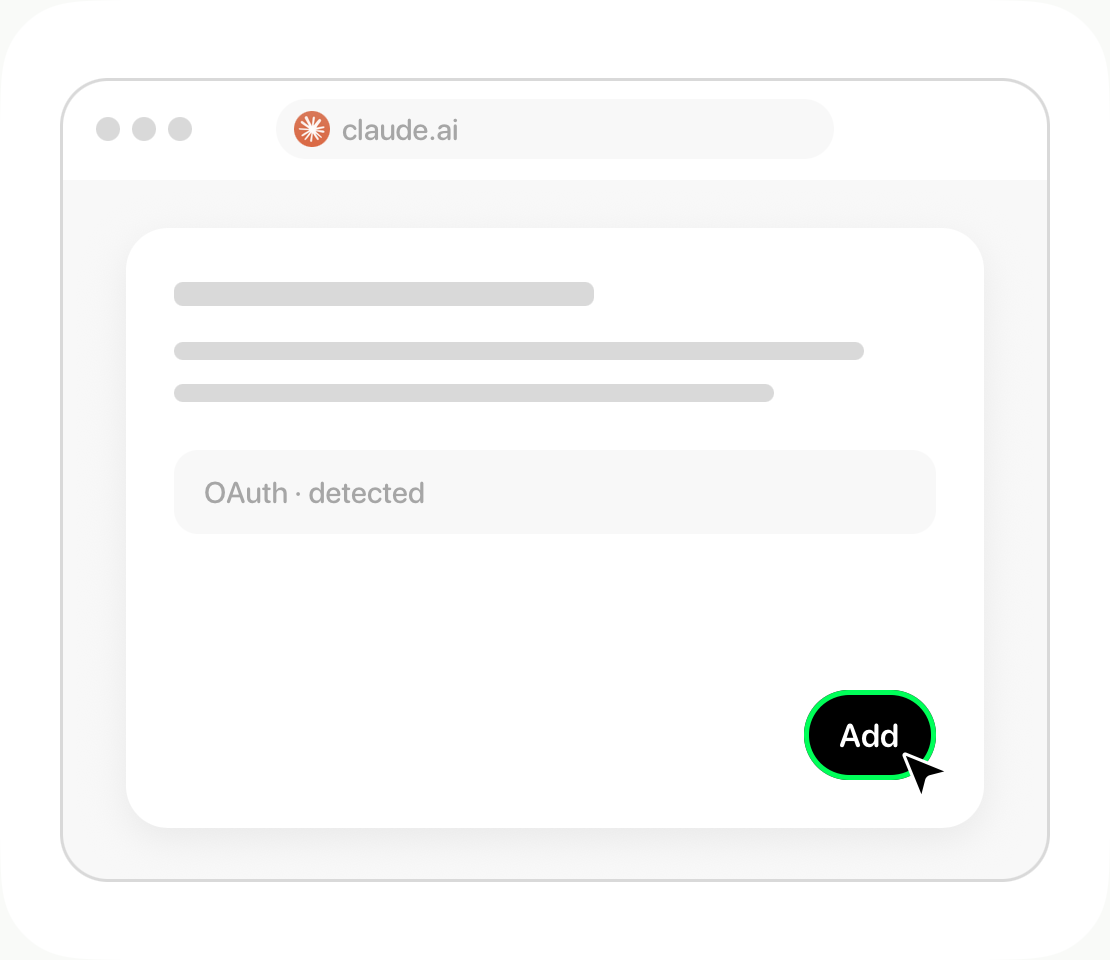
- Review the authentication settings and add the connector. Sign in when prompted.
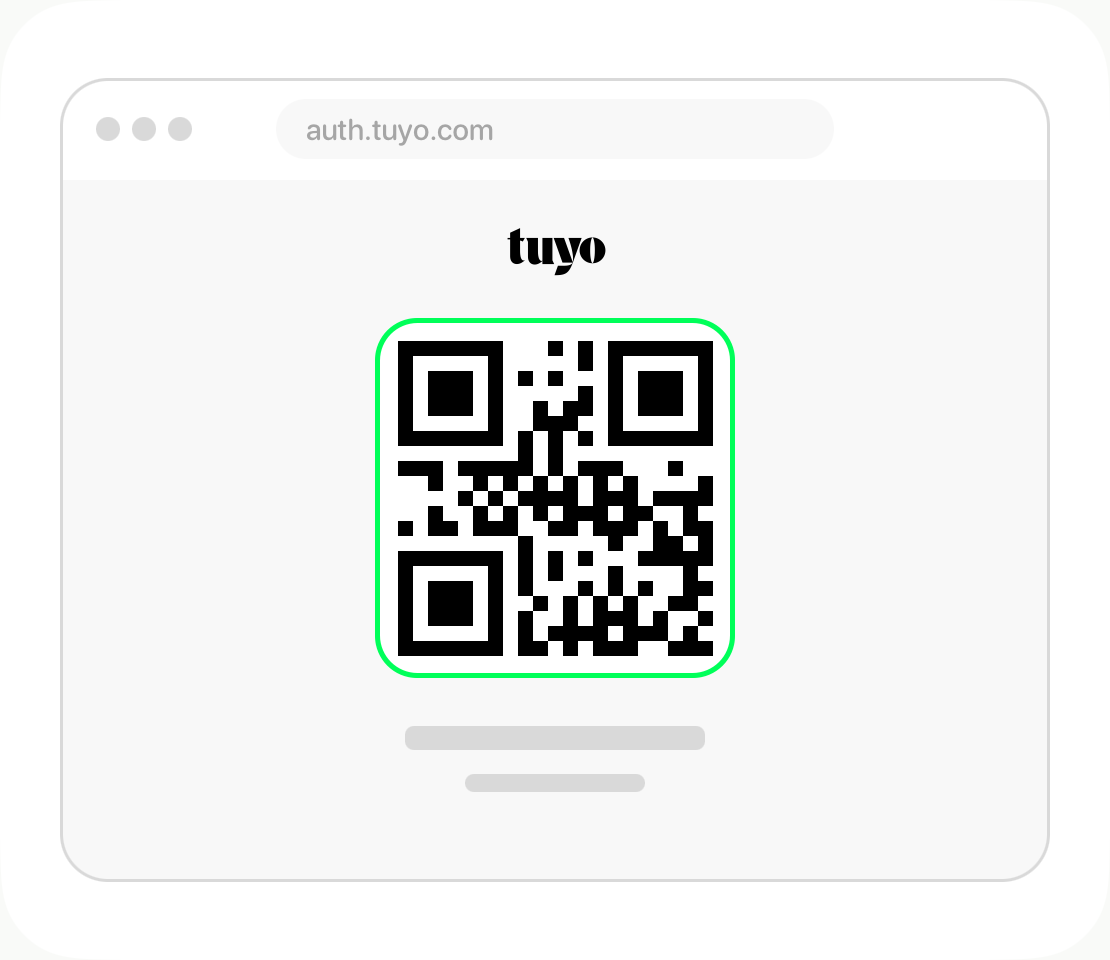
- Scan the Tuyo QR code, approve access in Tuyo, then return to the original browser tab.
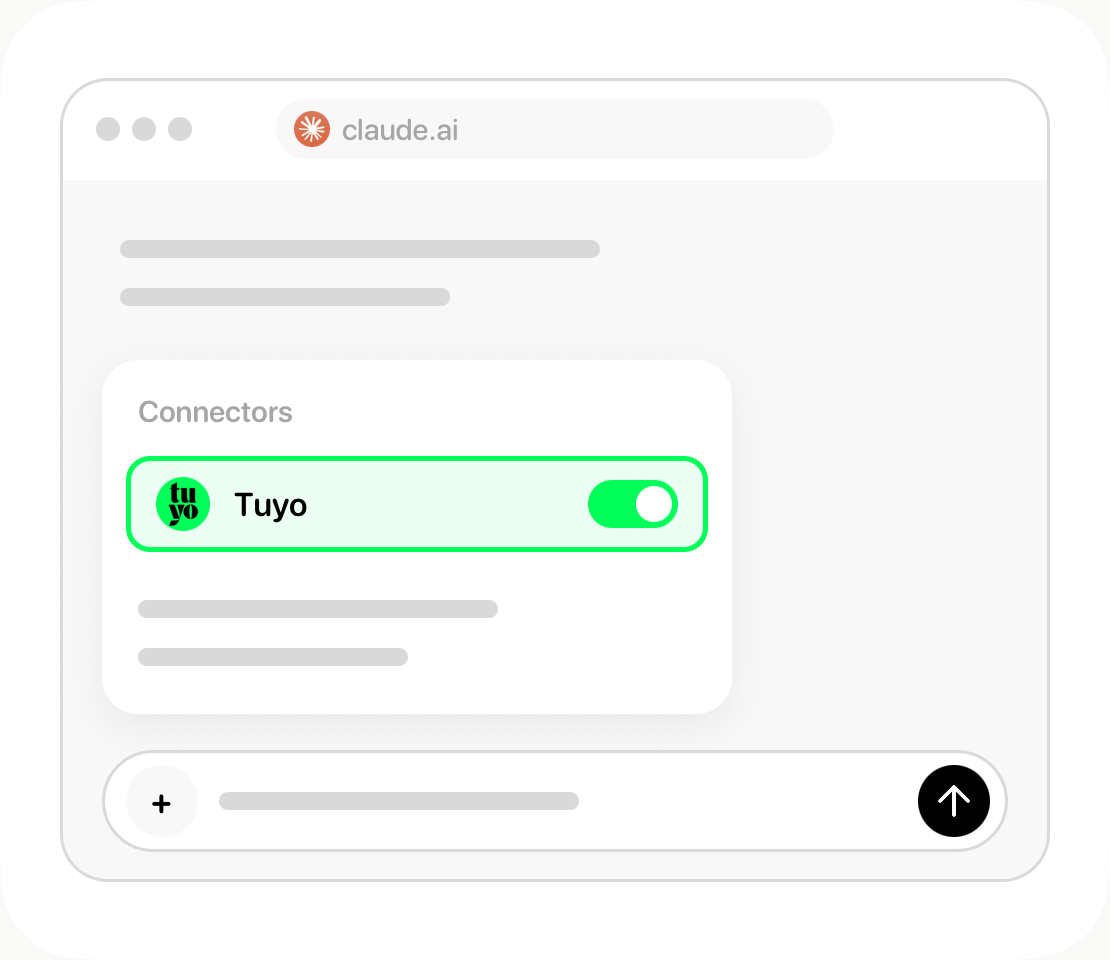
- In a chat, enable Tuyo under + → Connectors and ask about your balance.
Step-by-step guide
Open Connectors
In Claude, open Customize, then Connectors.
Add a custom connector
Choose + Add, then Add custom connector.
Enter the Tuyo connection
Name the connector Tuyo. Paste the connection URL below into MCP server URL, then continue.
https://mcp.tuyo.com/mcp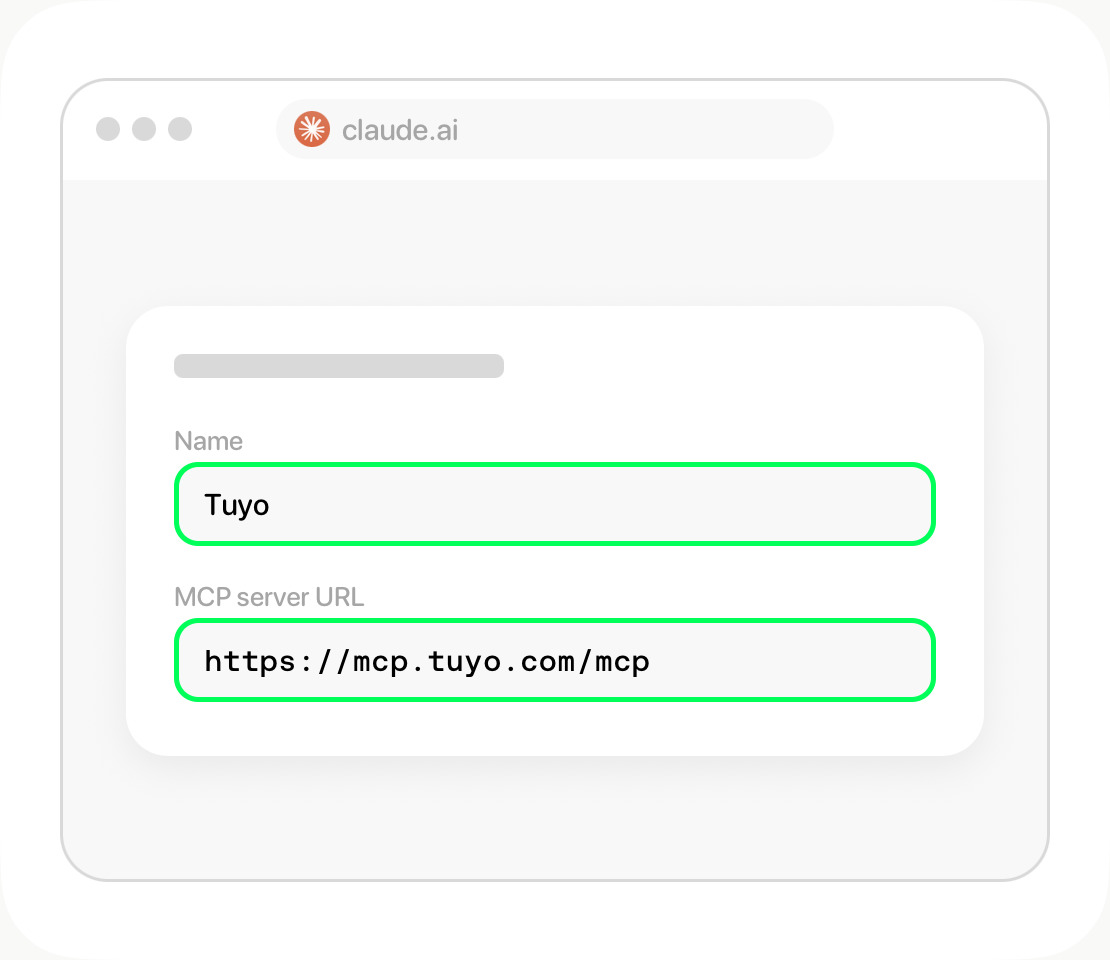
Review and add
Review the detected authentication settings, continue, and choose Add. Sign in when Claude prompts you.
Approve access in Tuyo
On the Tuyo page, scan the QR code with your phone. Review the request in Tuyo and approve it. Return to the original browser tab.
Use Tuyo in a chat
In a new Claude chat, open + → Connectors and turn on Tuyo. Ask: What's my available balance in Tuyo?
After connecting
Ask about your balance, activity, or deposit details. Each send or conversion still needs your separate approval in Tuyo.
Illustrated steps. Menu names can vary by app version. See Claude's connection instructions if your menus differ.