
Move your vault funds to Cash
Your card now spends only from Cash. Move the vaults you want to keep spending to Cash, and leave the rest earning in Investments.
For the Tuyo iPhone app version 1.26.61 or later, if you had vaults your card could spend from. The app shows these steps the first time you open Cash after updating.
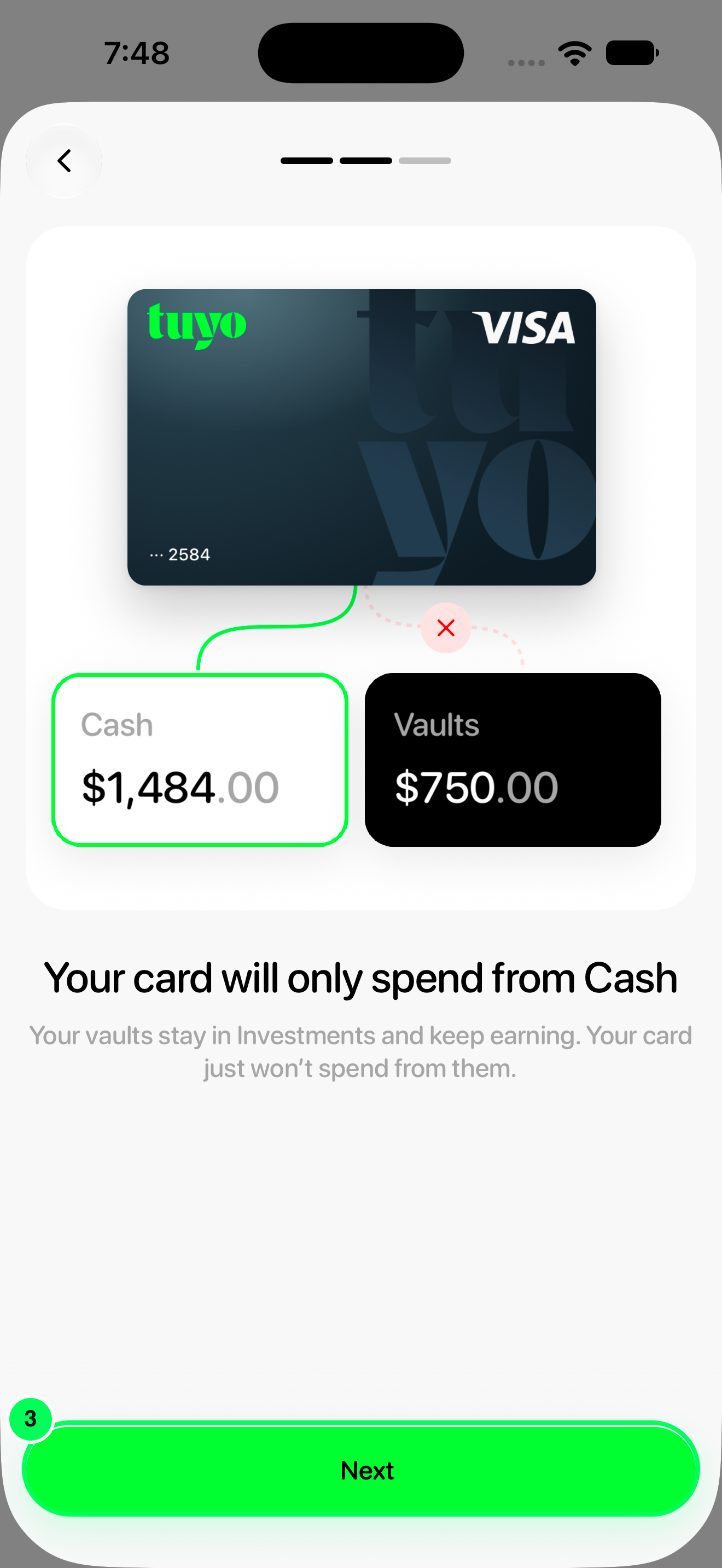
What changed: your Tuyo card now spends only from Cash. Vaults stay in Investments and keep earning, but the card stops spending from them once you turn on interest in Cash (or by the date shown in the app, if one is shown).
What to do: move any vault you still want to spend with your card to Cash. You choose which ones; anything you don't move stays invested. Moving a vault withdraws its full balance to your USD Cash balance.
Quick text guide
Start the update
- From Home, tap Cash.
- Tap Next.
- Tap Next.
- Tap Choose vaults.
Move a vault to Cash
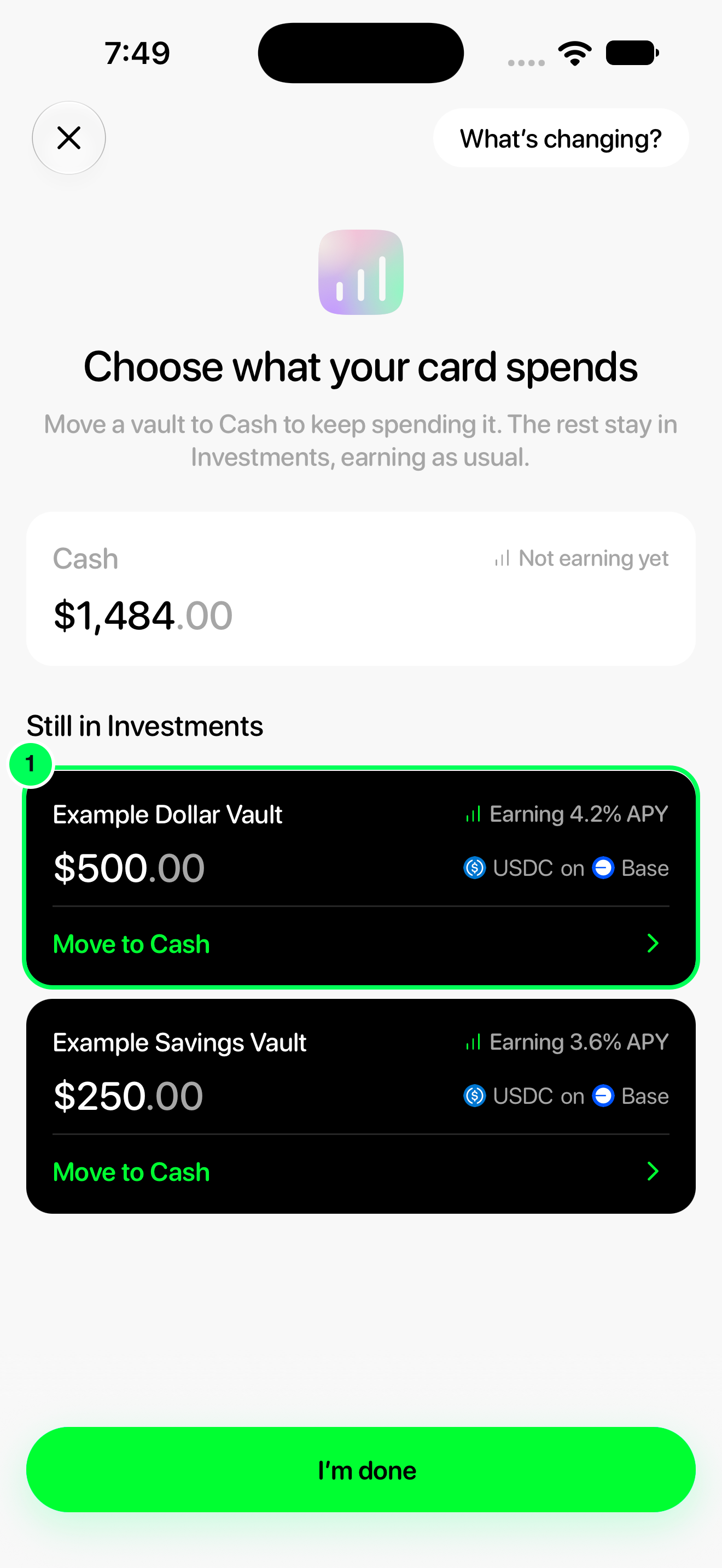
- Under Still in Investments, tap Move to Cash on the vault you want to move.
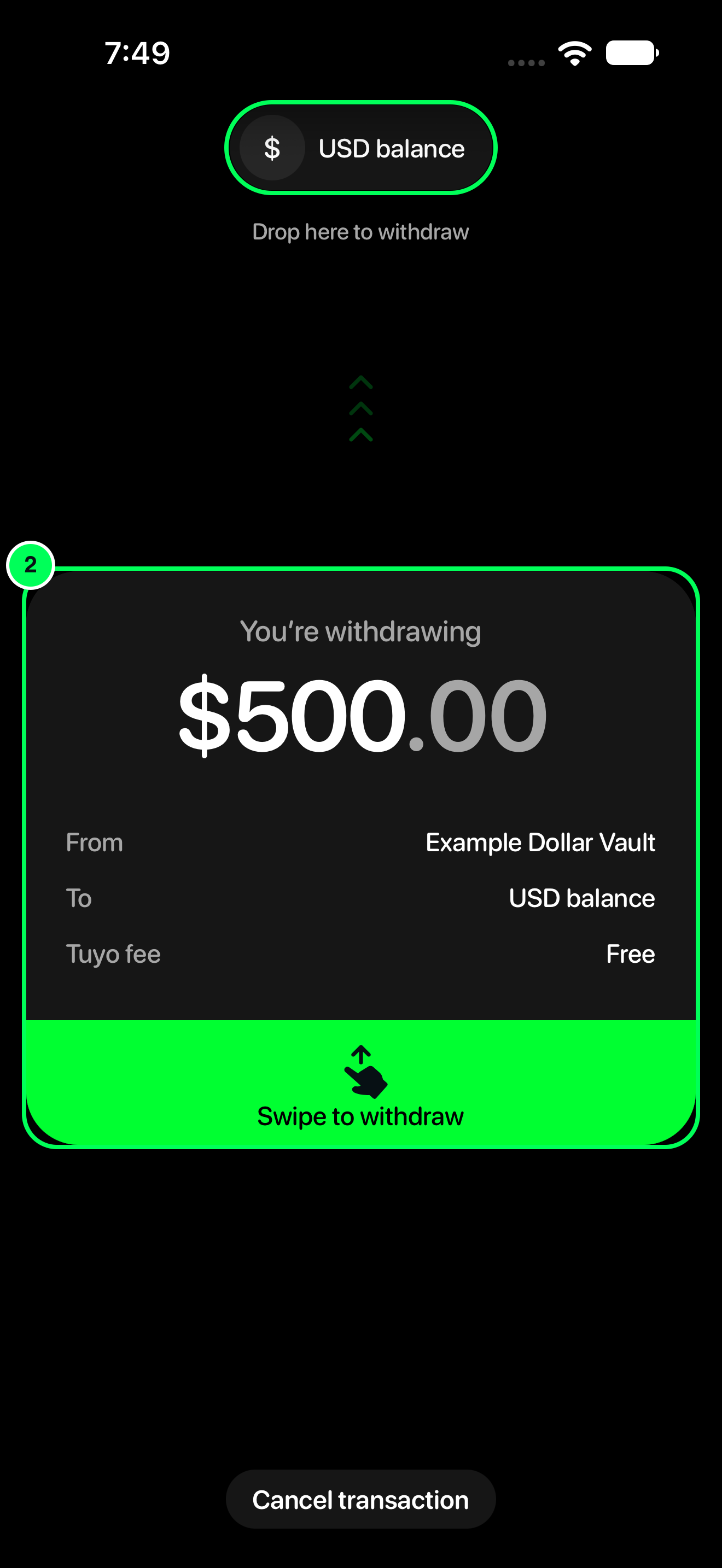
- Check the amount and fees, then swipe the card up onto USD balance to withdraw.
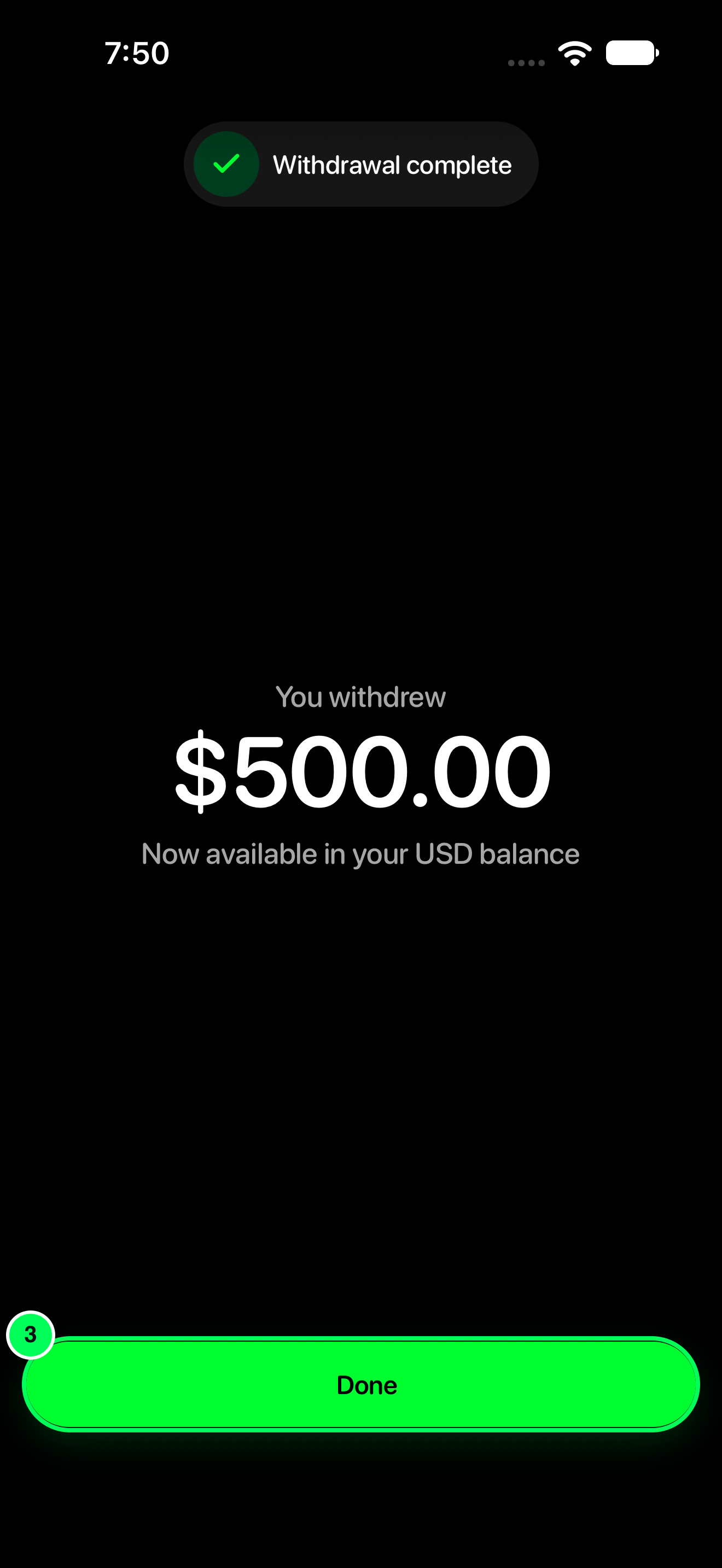
- When you see Withdrawal complete, the money is in your USD Cash balance. Tap Done.
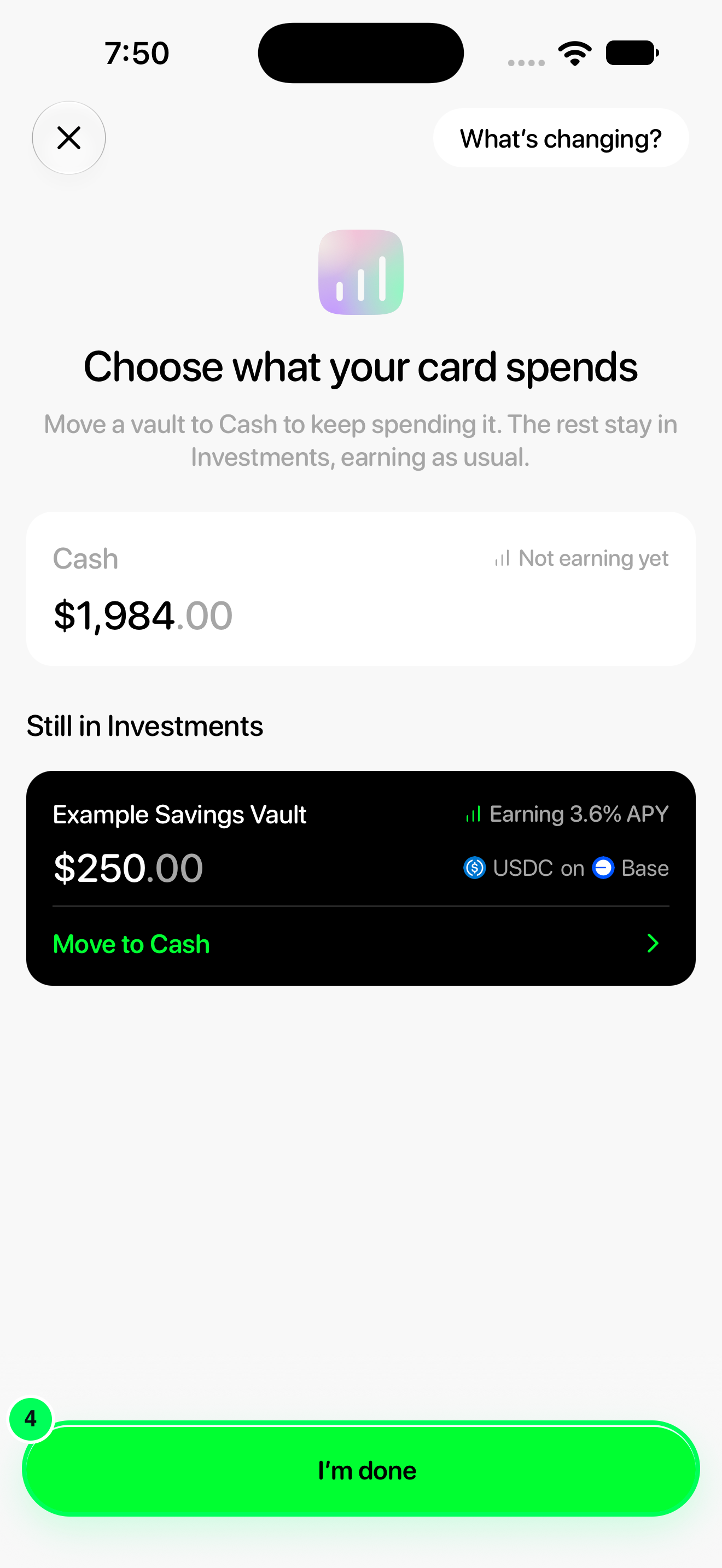
- Repeat for any other vault you want to move, then tap I’m done.
Finish
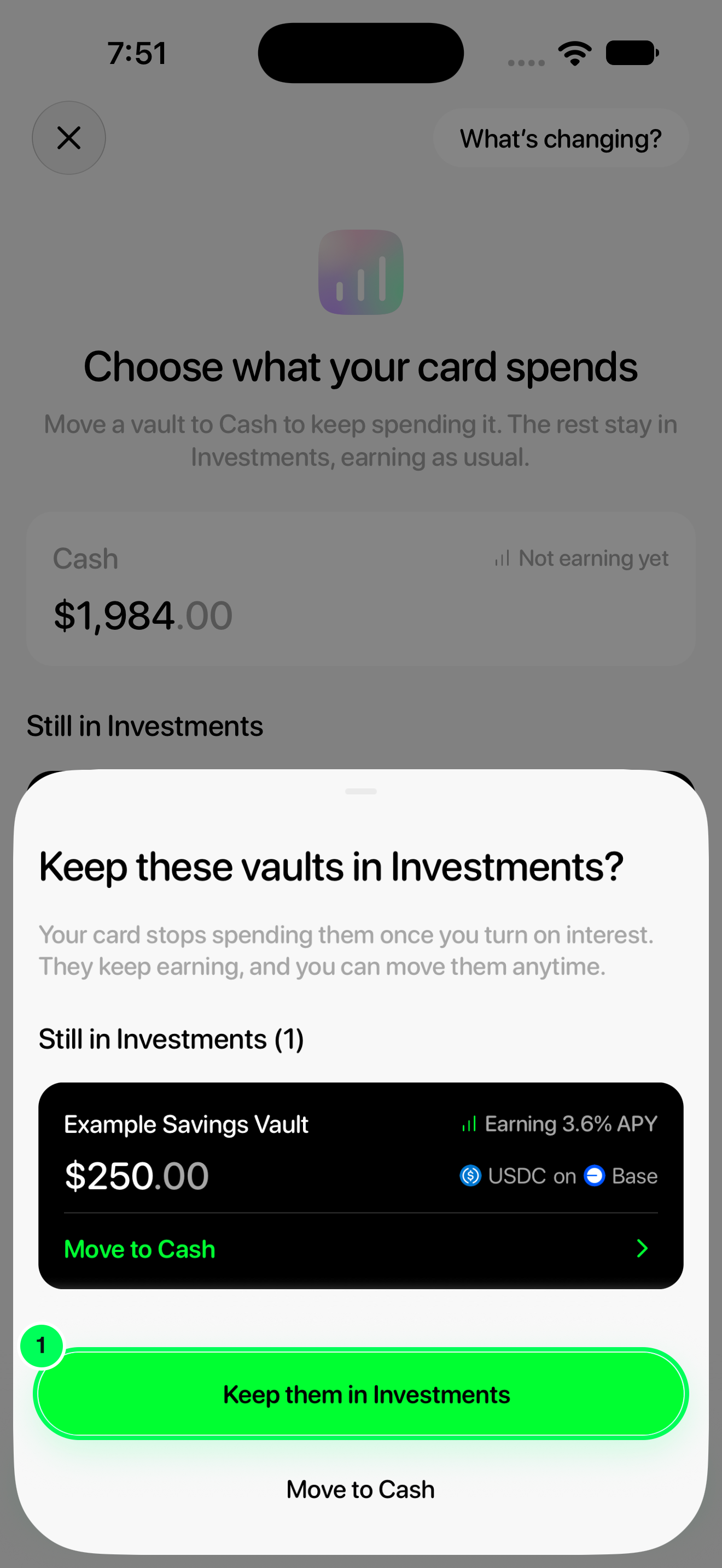
- If asked Keep these vaults in Investments?, tap Keep them in Investments.
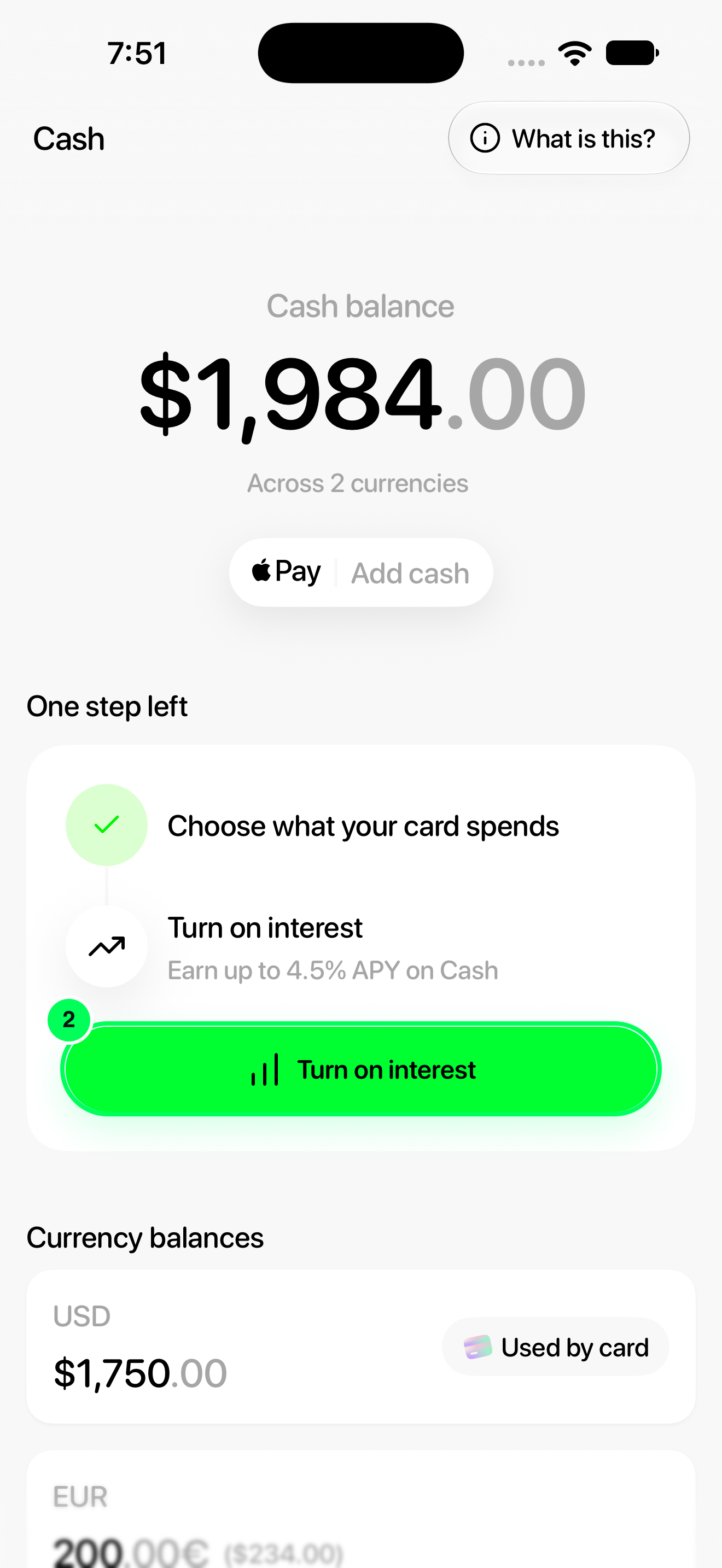
- On Cash, tap Turn on interest and follow Activate interest on Cash.
Moved vaults are now in Cash, where your card can spend them. Vaults you kept stay in Investments and keep earning, and you can withdraw them to Cash at any time.
Step-by-step guide
Start the update
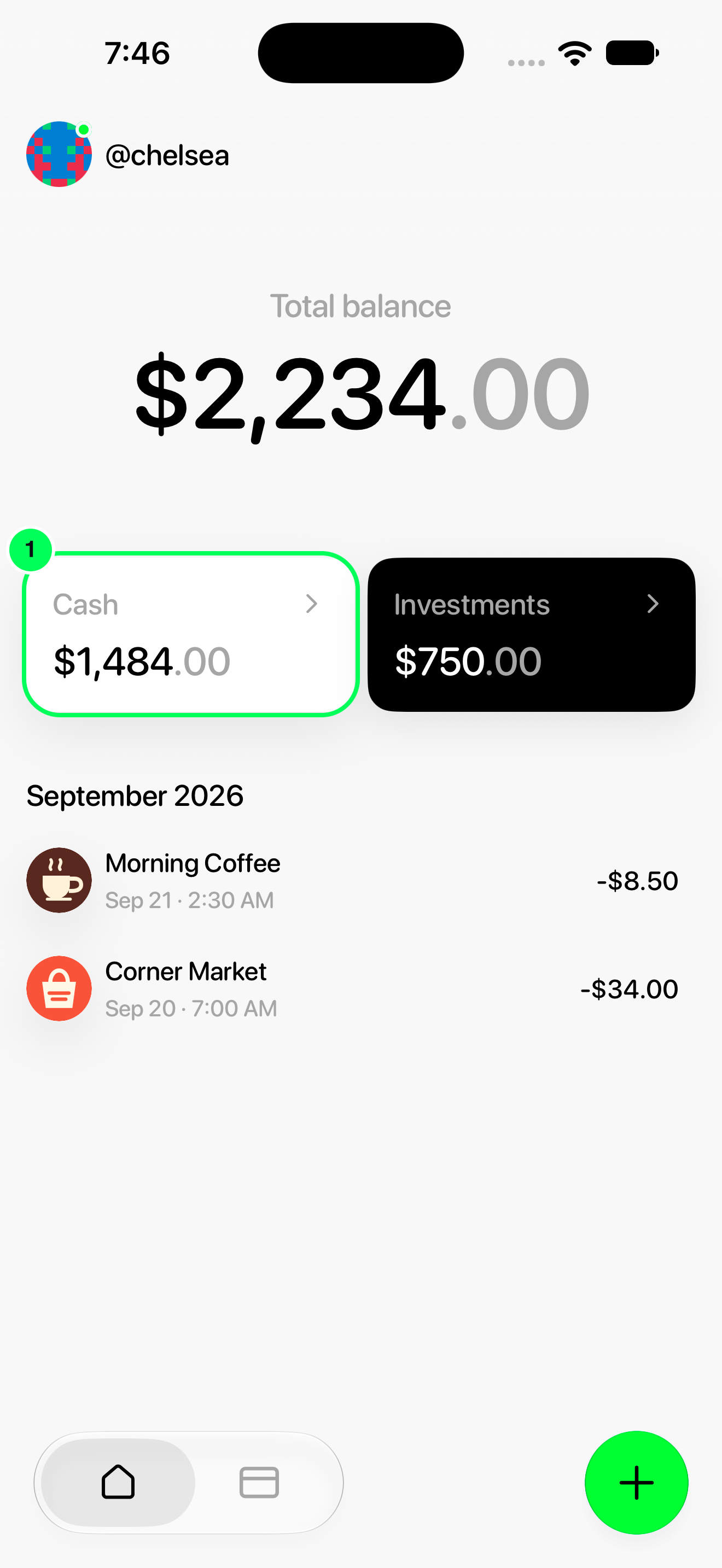
1. Open Cash
From Home, tap Cash.
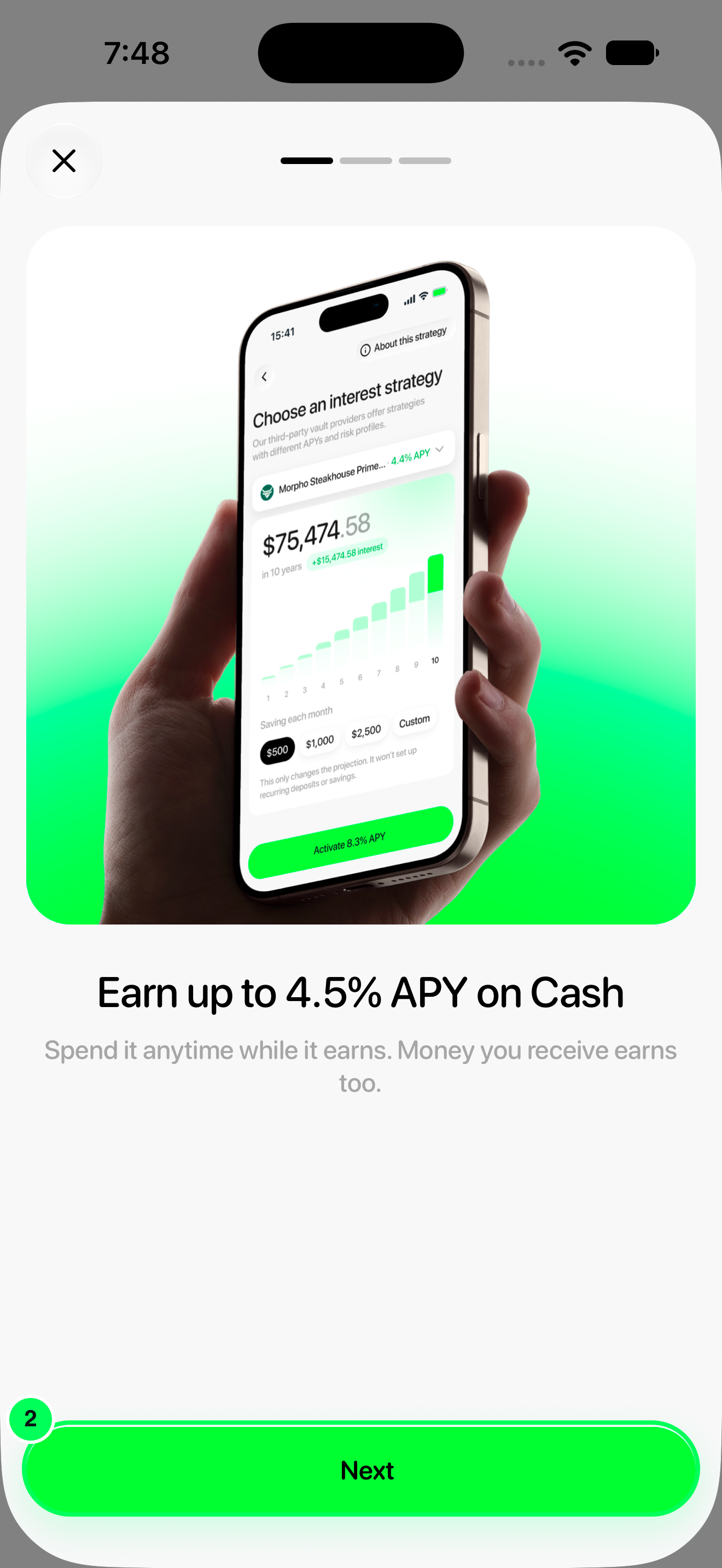
2. Read about interest on Cash
The first screen explains that Cash can now earn interest while you spend it. Tap Next.
3. See what changes for your card
The second screen shows that your card will only spend from Cash, and that your vaults stay in Investments. Tap Next.
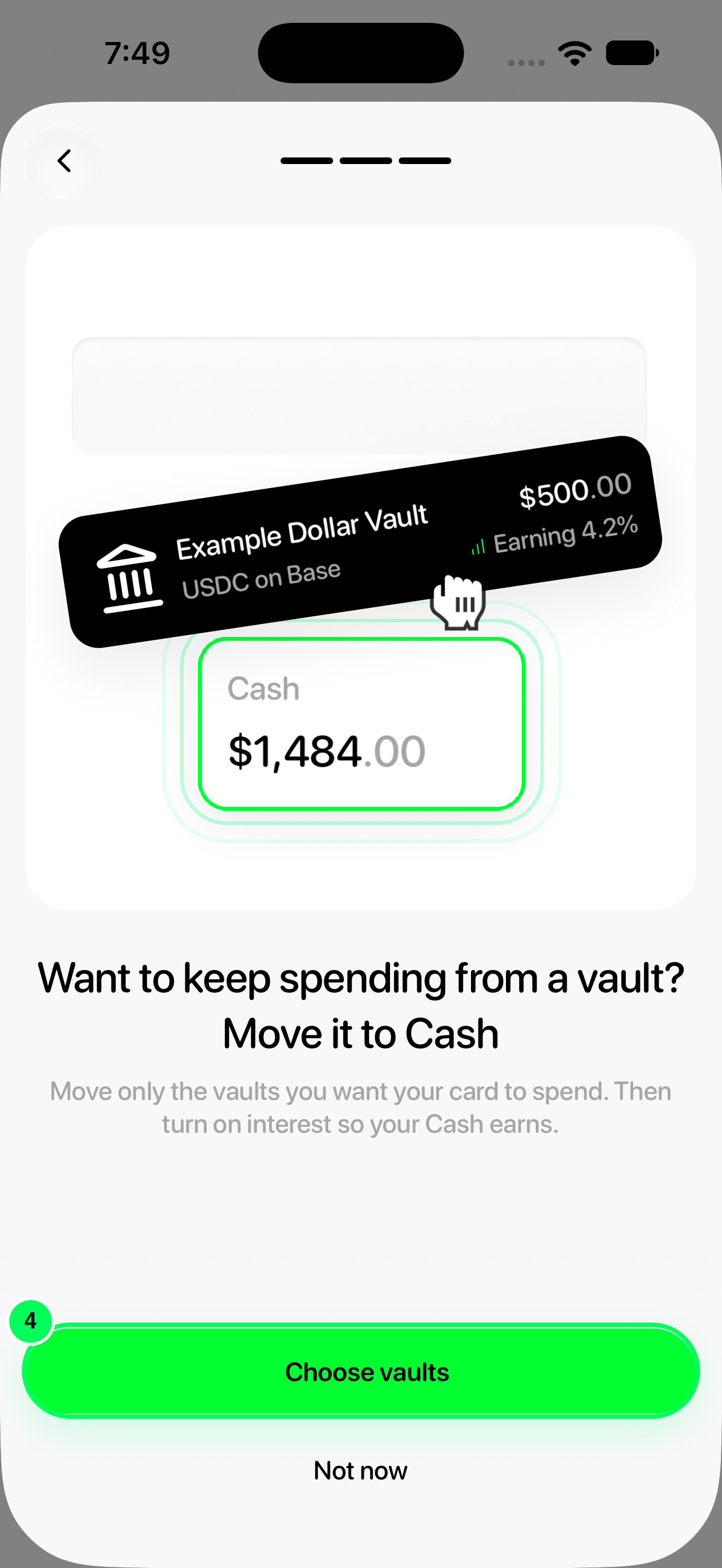
4. Choose vaults
Tap Choose vaults. (Not now takes you to Cash without moving anything; you can come back later.)
Move a vault to Cash
1. Pick a vault to move
Choose what your card spends shows your Cash balance and the vaults Still in Investments. On a vault you want your card to keep spending, tap Move to Cash.
2. Review and swipe to withdraw
Check the amount, From (your vault), To (USD balance) and the fees. The vault’s full balance is moved. Drag the card up onto USD balance (Swipe to withdraw), then confirm with Face ID or your passcode if asked.
3. Tap Done
When you see Withdrawal complete, the money is in your USD Cash balance. Tap Done.
4. Move more vaults, or finish
You return to the list, and your Cash balance now includes the moved money. Repeat Move to Cash for any other vault you want to spend, then tap I’m done.
Finish
1. Keep the rest in Investments
If any vaults are left, the app asks Keep these vaults in Investments? Tap Keep them in Investments to finish. To move one instead, tap Move to Cash on it.
2. Turn on interest
Back on Cash, the setup card shows One step left. Tap Turn on interest to start earning on your Cash. Follow Activate interest on Cash for the rest.
Other ways to open this
- Spending tab: a card titled Choose what your card spends has a Choose vaults button.
- Cash: if you tapped Not now, the Set up your new Cash card on Cash has a Choose vaults button.
- What’s changing? on the vault list shows the explanation screens again.
Good to know
- Moved money doesn’t earn until you turn on interest. Funds moved to Cash are spendable straight away, but they only earn once you turn on interest.
- Turning on interest ends card spending from vaults. After that, your card spends only from Cash. Vaults left in Investments keep earning; withdraw from them to Cash whenever you want to spend that money.
- Each vault moves in full. To move only part of a vault, withdraw from it in Investments instead.
- A balance seems missing? Check both Cash and Investments. Money in a vault you didn’t move is in Investments, not in your card balance. If it isn’t in either, contact support.
Check your card-spendable balance · Review Cash strategy risks
Names, balances and rates in these screenshots are examples. Use the values shown in your app.