
Choose how to add cash
Open Add cash from the green plus button, then choose the method that works for you.
These instructions show the new Tuyo app. The methods available to you depend on your country, device, account verification, and the amount you enter. Follow the choices shown in your app.
Quick text guide
- From Home, tap the green + action button in the bottom-right corner.
- Tap Add cash in the action menu.
- For a wallet, card or linked bank payment, enter the amount you want to add. Bank transfers and crypto use receiving instructions instead of charging this amount. If your account shows Card, Bank, and Crypto choices first, choose the appropriate route.
- Tap the payment-method row, then follow one of the method guides below. The methods you see depend on your account, country, device and amount.
Choose a method
Choose a method offered in your app to see its instructions here.
Select a method to open its guide.
Review the current fees, limits, conversion charges and arrival estimate before confirming. Use your own receiving details; screenshot values are fictional examples.
See the opening steps with screenshots
Step-by-step guide
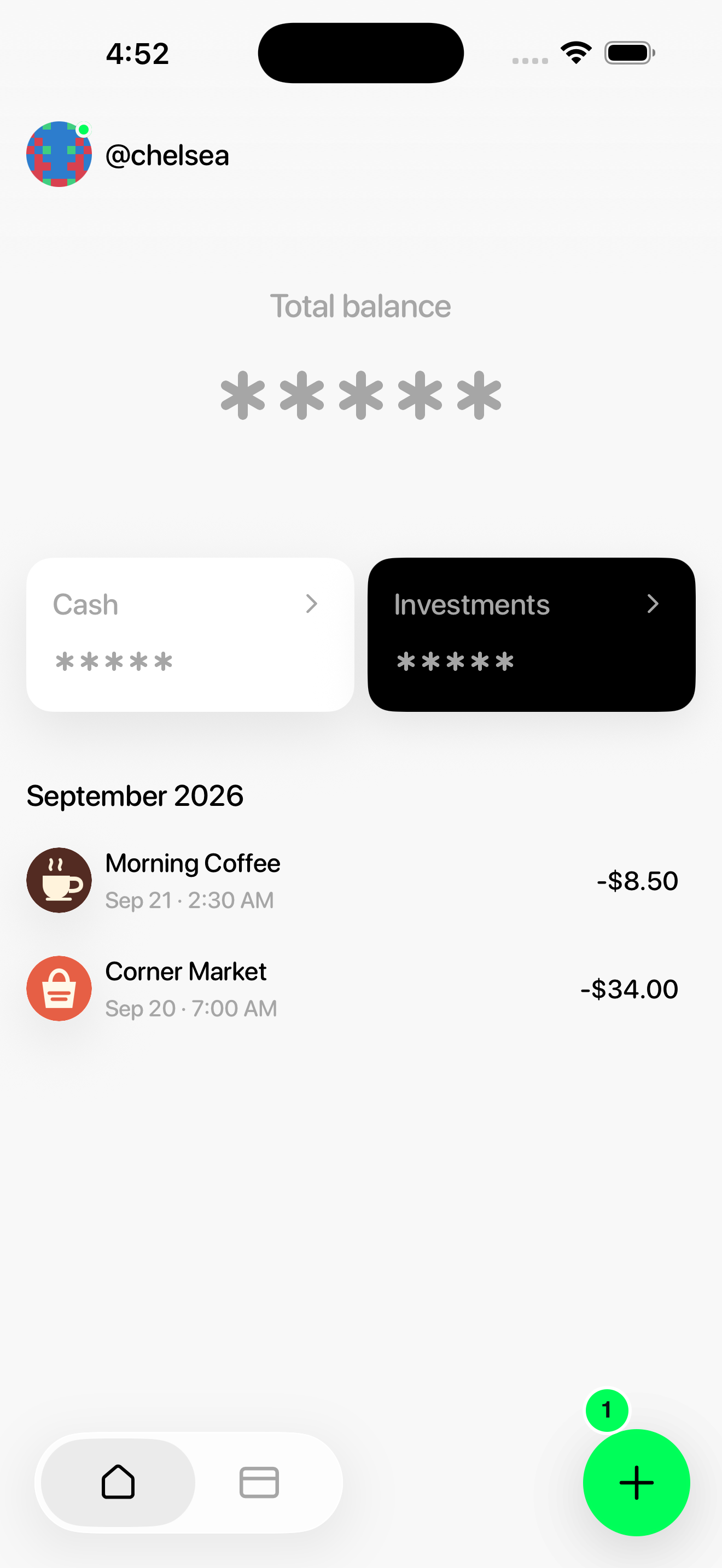
1. Tap the green plus button
From Home, tap the green + action button in the bottom-right corner.
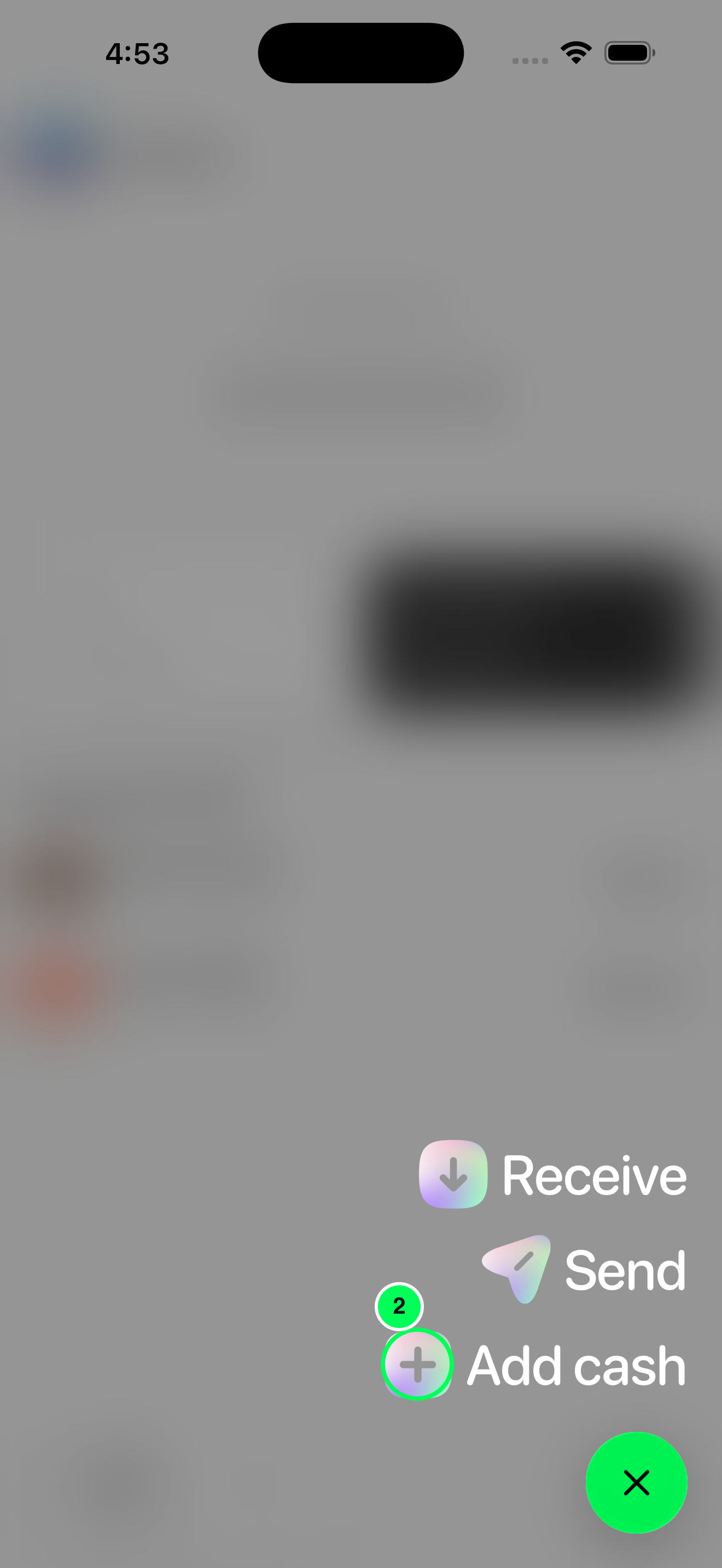
2. Choose Add cash
Tap Add cash in the action menu.
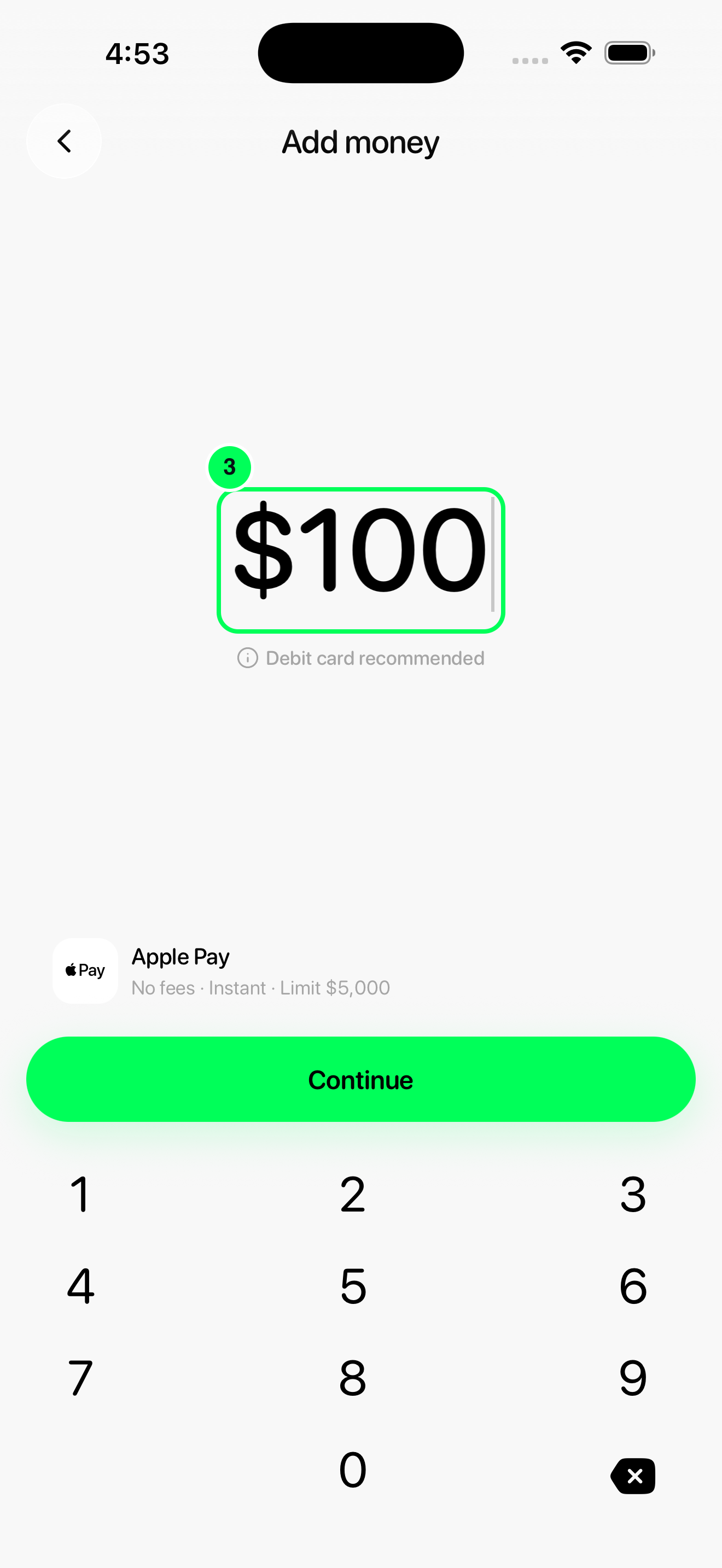
3. Enter the amount
For a wallet, card or linked bank payment, enter the amount you want to add. Bank transfers and crypto use receiving instructions instead of charging this amount. If your account shows Card, Bank, and Crypto choices first, choose the appropriate route.
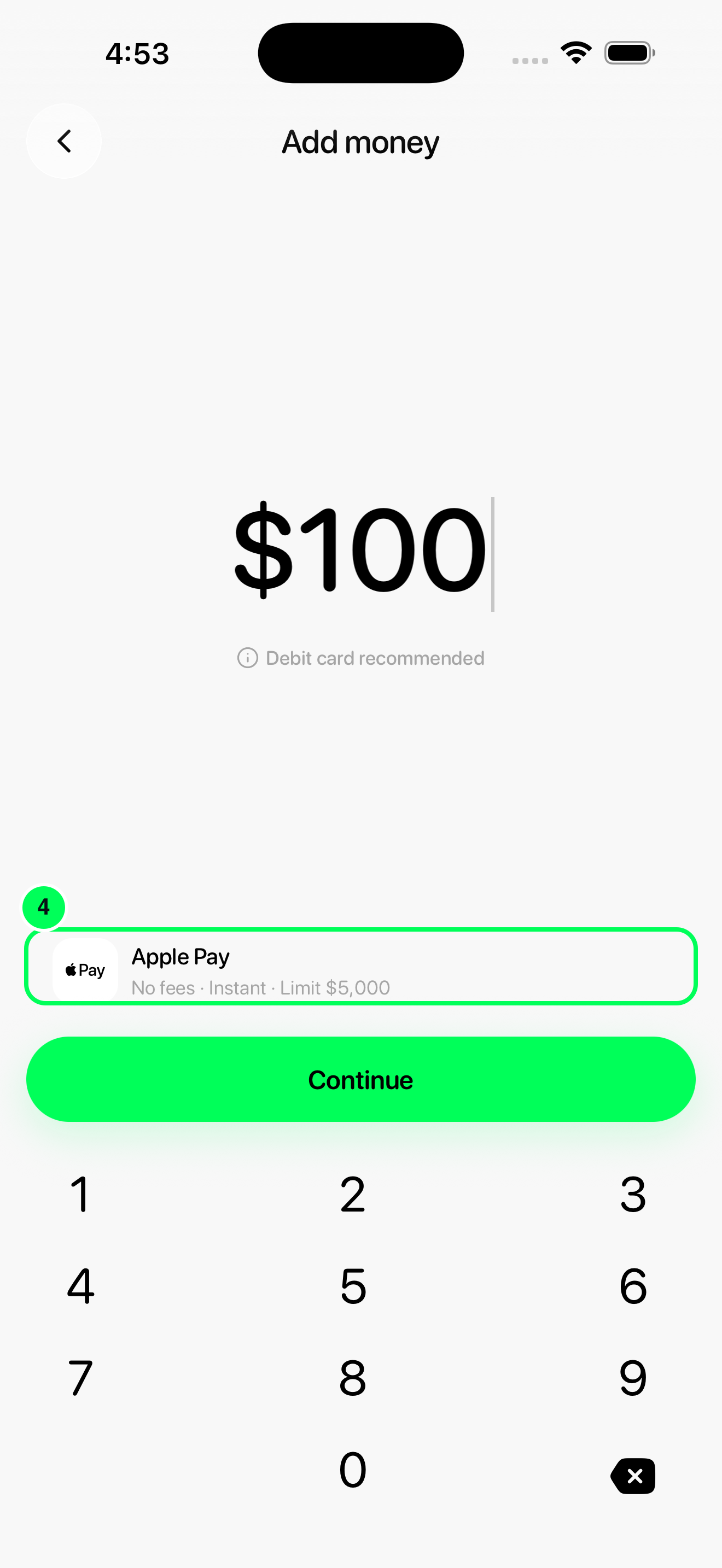
4. Open the payment methods
Tap the payment-method row, then follow one of the method guides below. The methods you see depend on your account, country, device and amount.
After you add money
Return to Home → Cash and check the updated balance and activity. A provider approval or a bank’s transfer confirmation is not the same as funds arriving in Tuyo. Keep your receipt or transaction reference until the deposit arrives.
Fees, timing, and limits
- Wallet payments, cards, and linked accounts: the quote depends on your account, amount, and selected method. A method can be unavailable for one amount and available for another. Complete any additional verification the app requests.
- Bank transfers: use the currency-specific information button for supported senders, minimums, limits, and timing. Bank business days, checks, and conversion can affect arrival. A “No fees” transfer label does not remove a separate currency-conversion charge or a fee from the sending bank.
- Crypto: review the sending wallet or exchange’s network and withdrawal fees. Arrival depends on the network and deposit processing. Check the token, network, and address before confirming.
If something is missing or your deposit has not arrived
A payment method is missing: update your app, check your verification status, and try the amount you actually want to add. Use a method your app offers; Apple Pay, Google Pay, linked banks, and Coinbase are not universal options.
Bank details are missing or need action: complete the requested verification or account setup. Do not send while the account is paused or the app asks you to resolve a requirement.
A bank transfer is delayed: compare the receipt with your current Tuyo details and currency. Check the expected arrival time in the app and see Bank transfer status. Keep the bank reference and contact support through the app if it is overdue.
A crypto deposit is missing from Cash: check the transaction on the sending network, then check Investments for the received token. If you need support, provide the transaction hash, network, token, amount, and receiving address. Never share a recovery phrase or private key.
A payment was declined: follow the provider’s message and check your card or bank’s approval requirements. Before retrying, check whether the first attempt is pending or has already completed.