
Add cash with Apple Pay or Google Pay
Use the wallet payment method offered by your app.
These instructions show the new Tuyo app. The methods available to you depend on your country, device, account verification, and the amount you enter. Follow the choices shown in your app. Start with Home → green + → Add cash, as shown in Choose how to add cash. For wallet, card or linked-bank payments, enter your amount before choosing the method. If your app shows Card, Bank and Crypto choices first, choose the relevant route.
Quick text guide
- On Add money, tap the payment-method row to open Add money from.
- On Add money from, select Apple Pay on iPhone or Google Pay on Android when offered.
Step-by-step guide
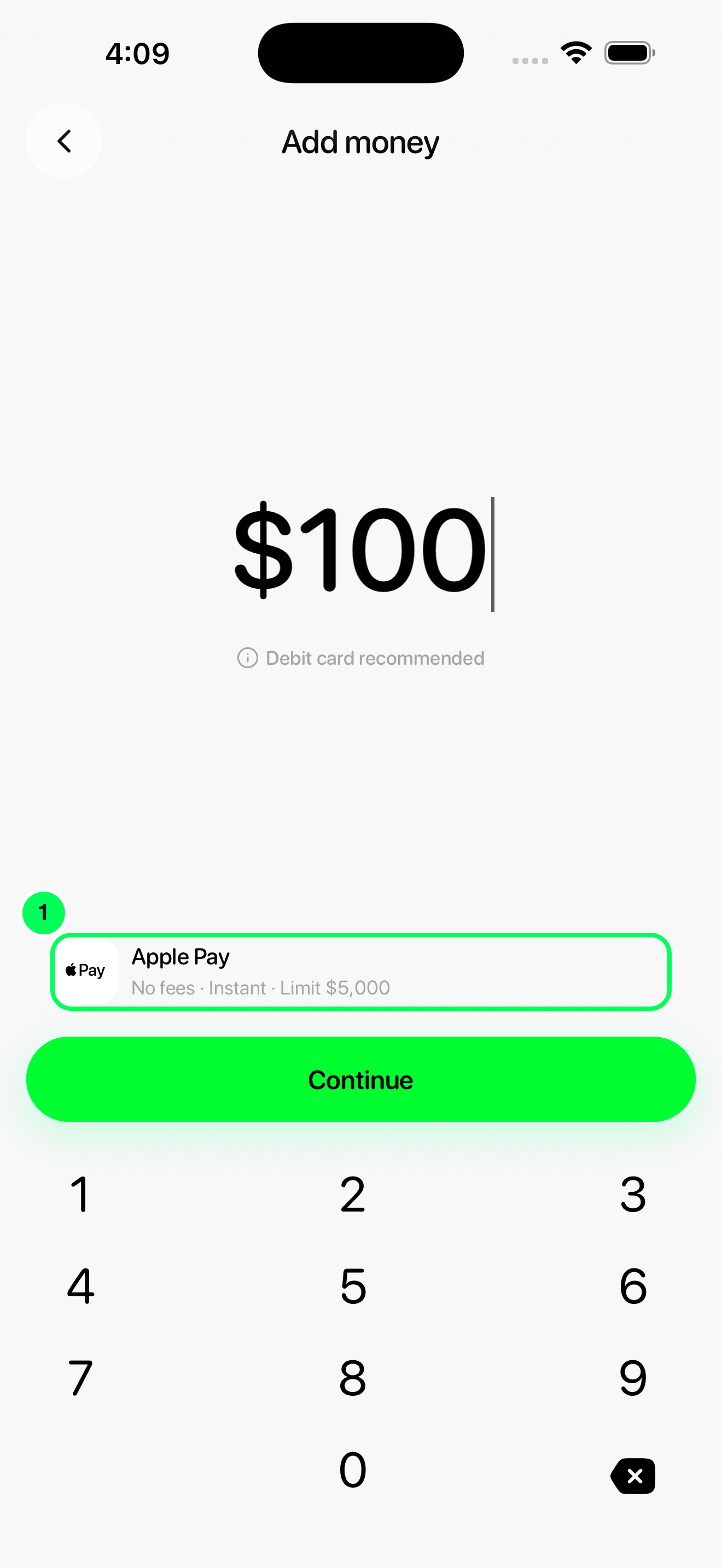
1. Open the payment methods
On Add money, tap the payment-method row to open Add money from.
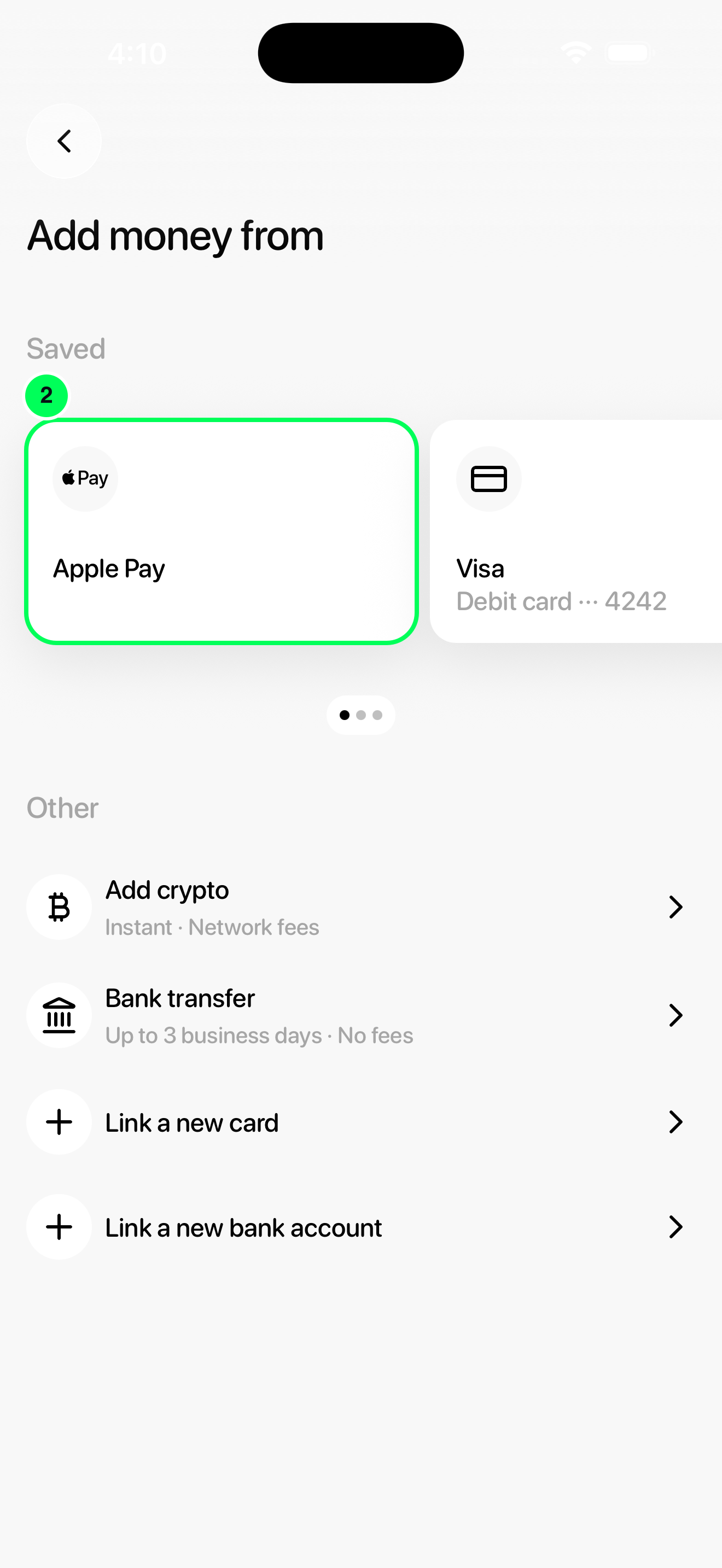
2. Choose Apple Pay or Google Pay
On Add money from, select Apple Pay on iPhone or Google Pay on Android when offered.
Complete your deposit
Return to Add money, review the amount and quote, then tap Continue and approve the payment in your wallet. Use a card supported by the wallet and deposit provider. Wallet availability depends on your device, country, account and payment card.
Check that your money arrived
Return to Home → Cash and check your balance and activity. Keep the receipt or transaction reference until the deposit arrives. A provider approval or bank confirmation is not the same as funds arriving in Tuyo.
Review current fees, conversion charges, limits and estimated arrival before confirming. Methods vary by country, device, verification and amount.
See Choose how to add cash for other methods and troubleshooting.