Freeze your card
Use card management to freeze your Tuyo card immediately.
Quick text guide
- On the main page, tap the Card tab in the bottom navigation.
- On the Card page, tap the Card shortcut.
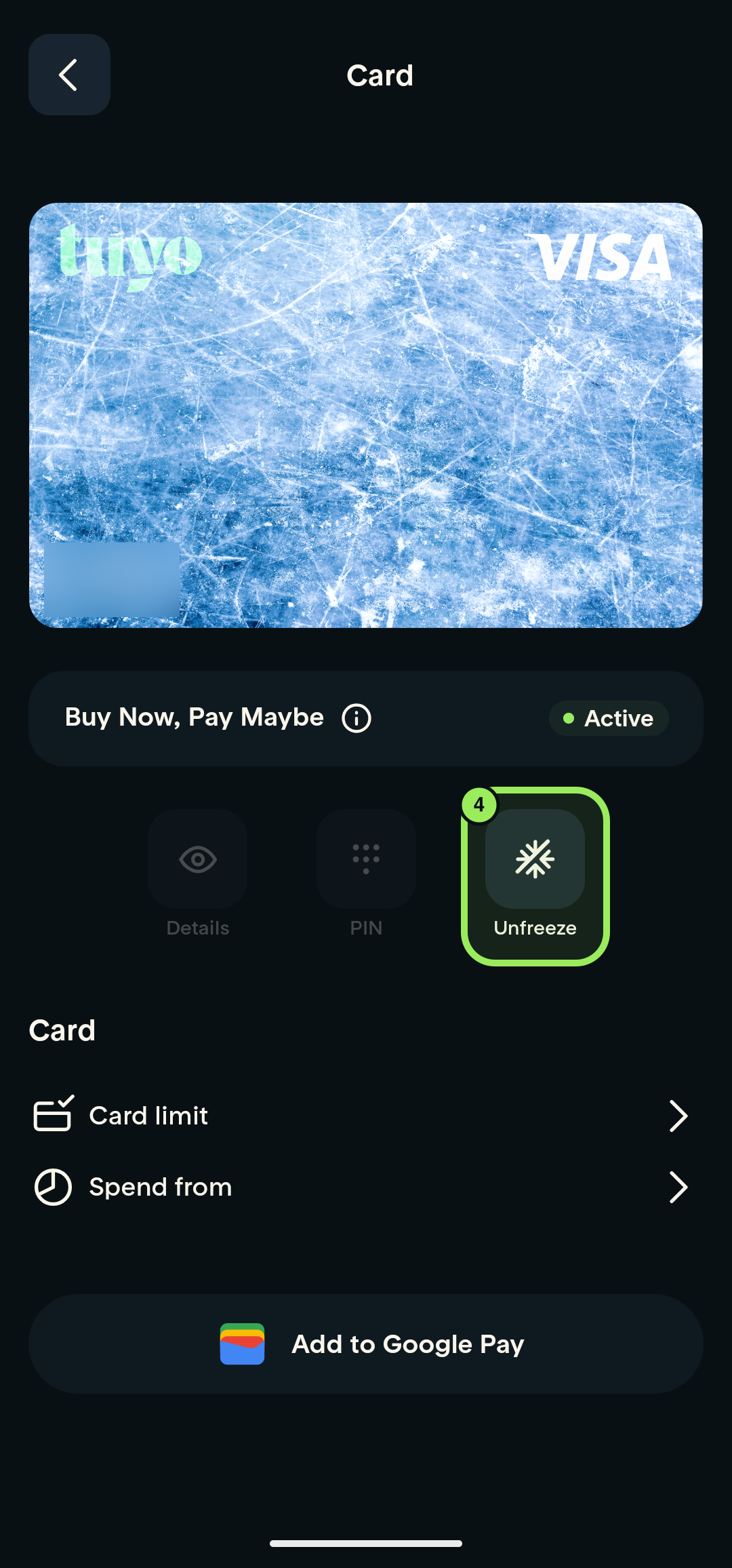
- Tap Freeze. The card changes to its frozen appearance and the control becomes Unfreeze.
Freeze applies immediately
Freeze the card when you want to stop it from being used. Use the separate Unfreeze your card guide when you are ready to use it again.
Step-by-step guide
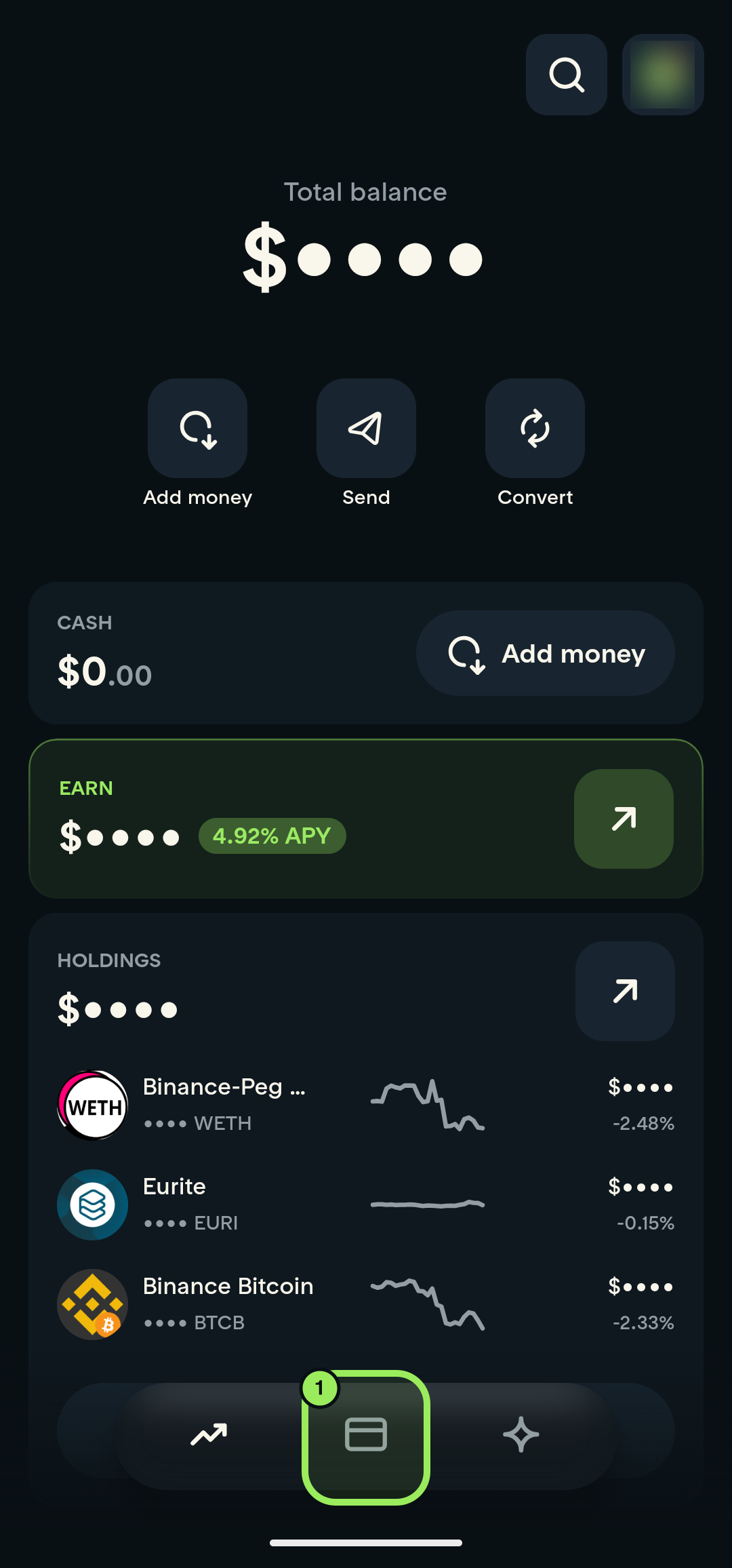
1. Open the Card tab
On the main page, tap the Card icon in the bottom navigation.
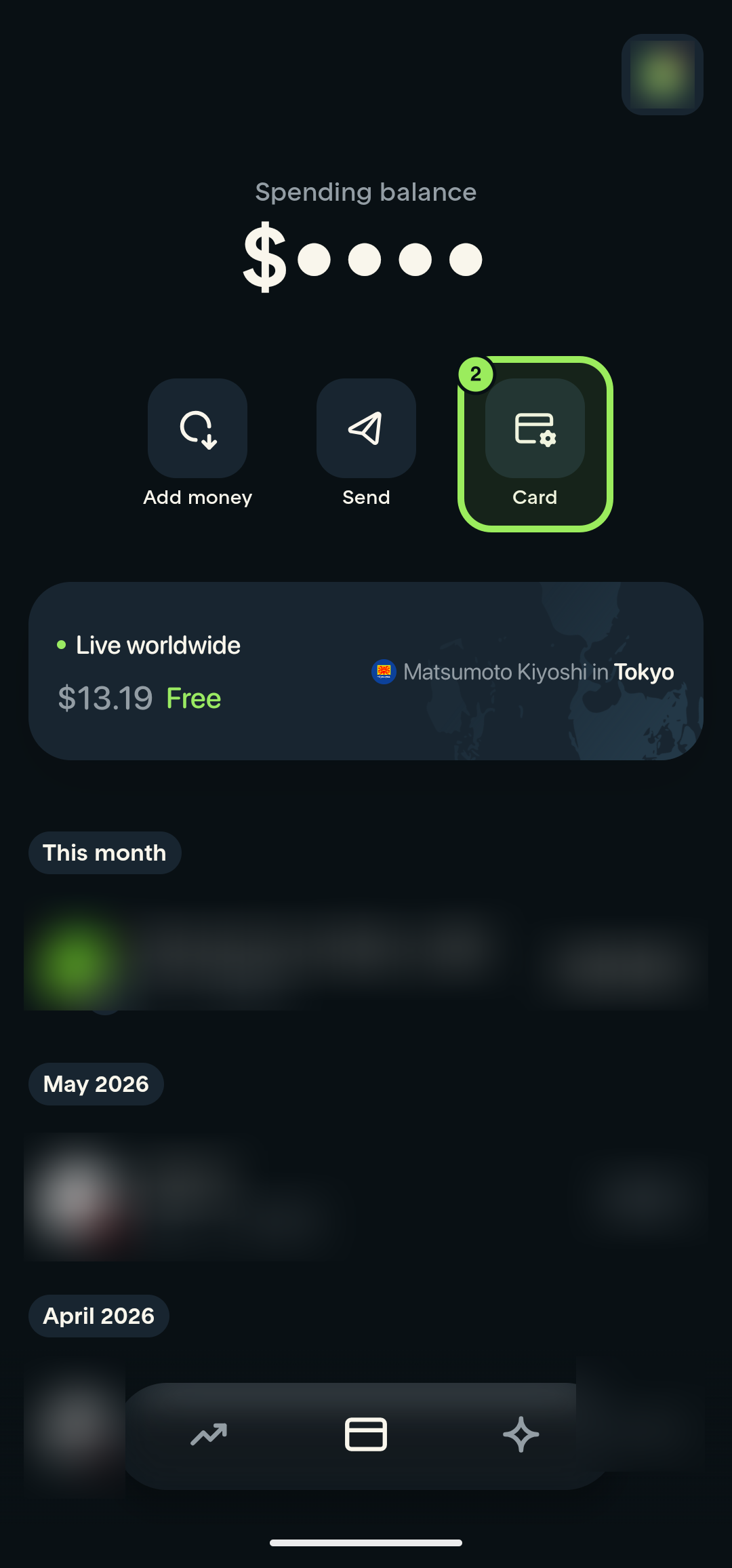
2. Open card management
On the Card page, tap the Card shortcut.
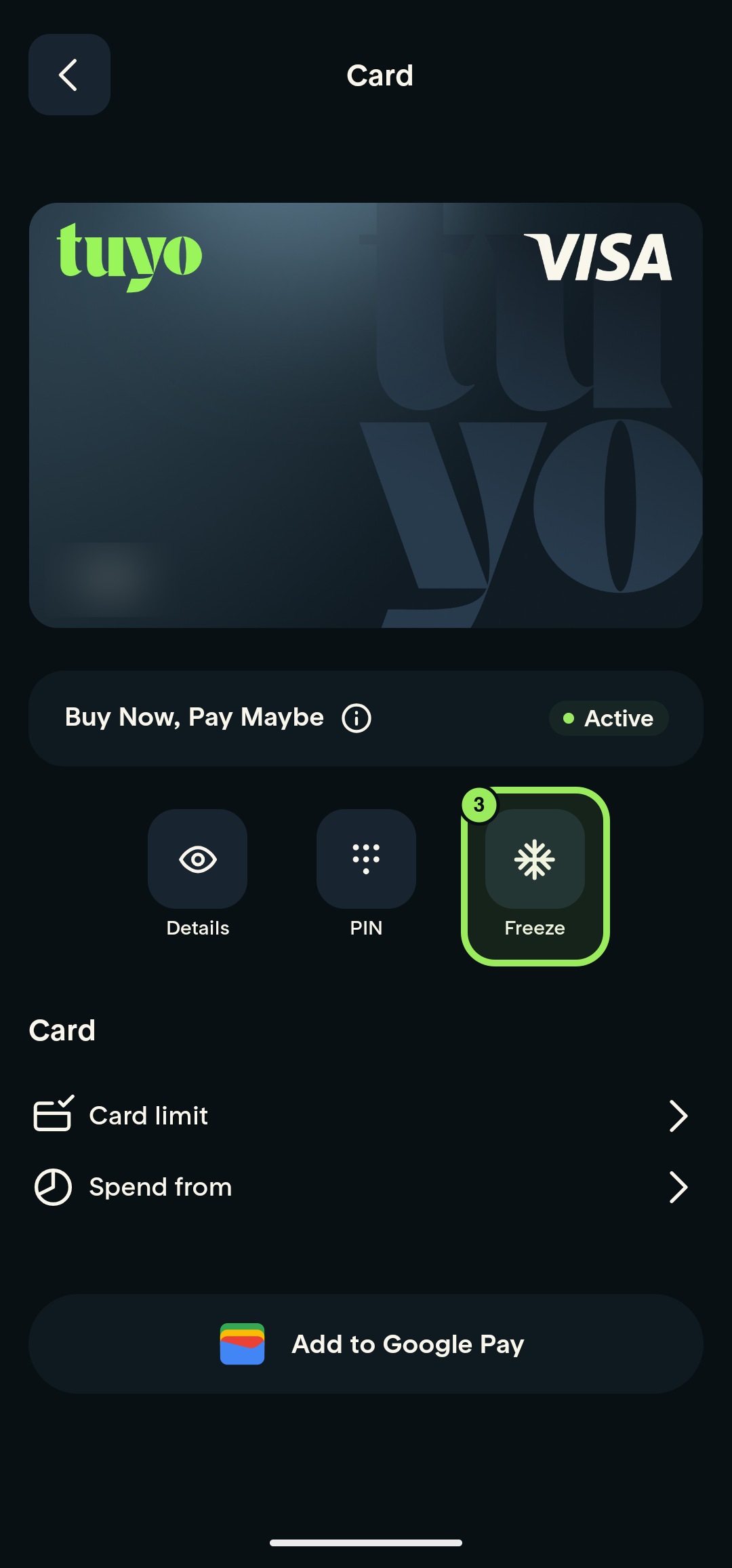
3. Freeze the card
Tap Freeze below the card preview. The change applies immediately.
4. Confirm that the card is frozen
The card changes to its frozen appearance and the control becomes Unfreeze. This confirms that the freeze took effect.