
Change your card PIN
Use card management to replace your current Tuyo card PIN.
Quick text guide
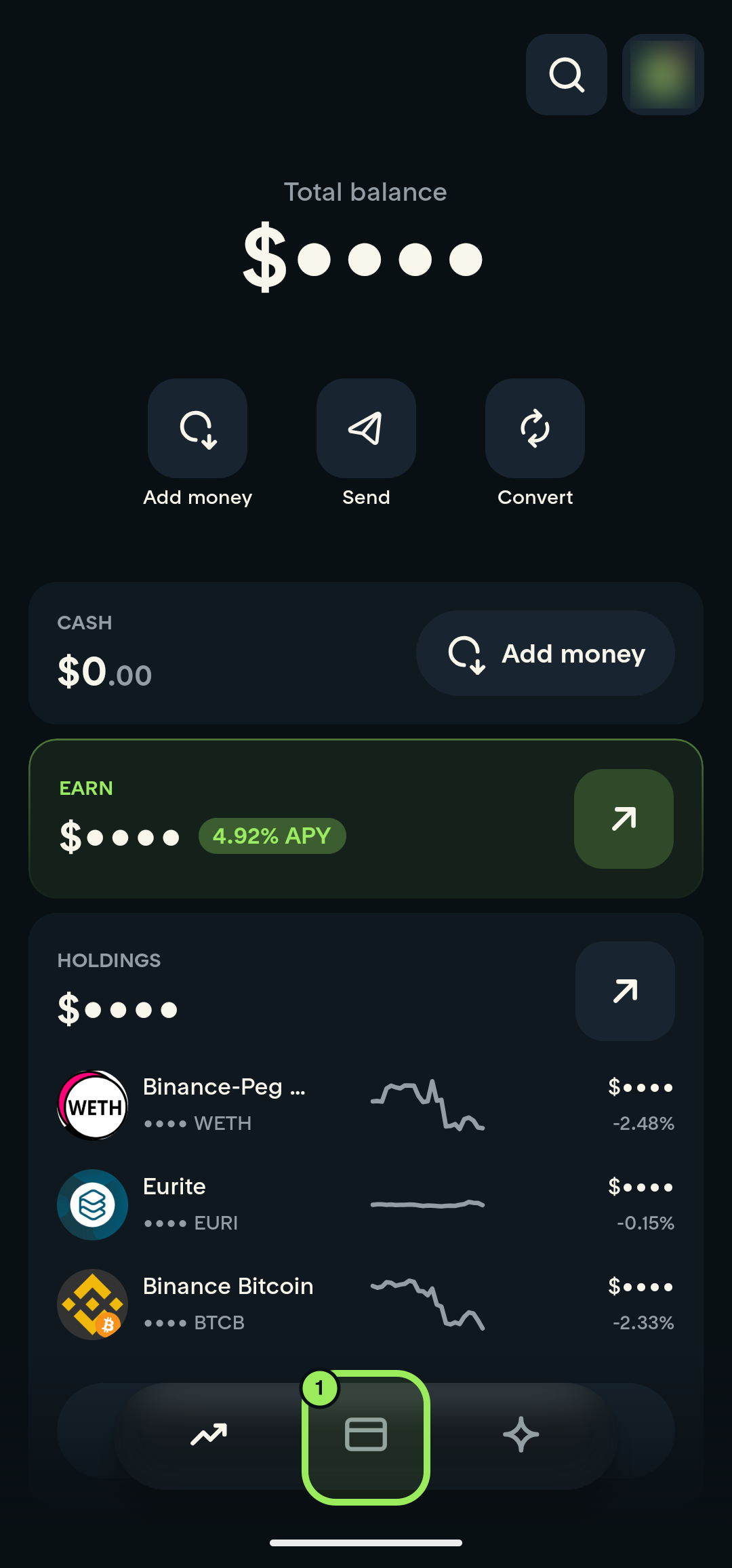
- On the main page, tap the Card tab in the bottom navigation.
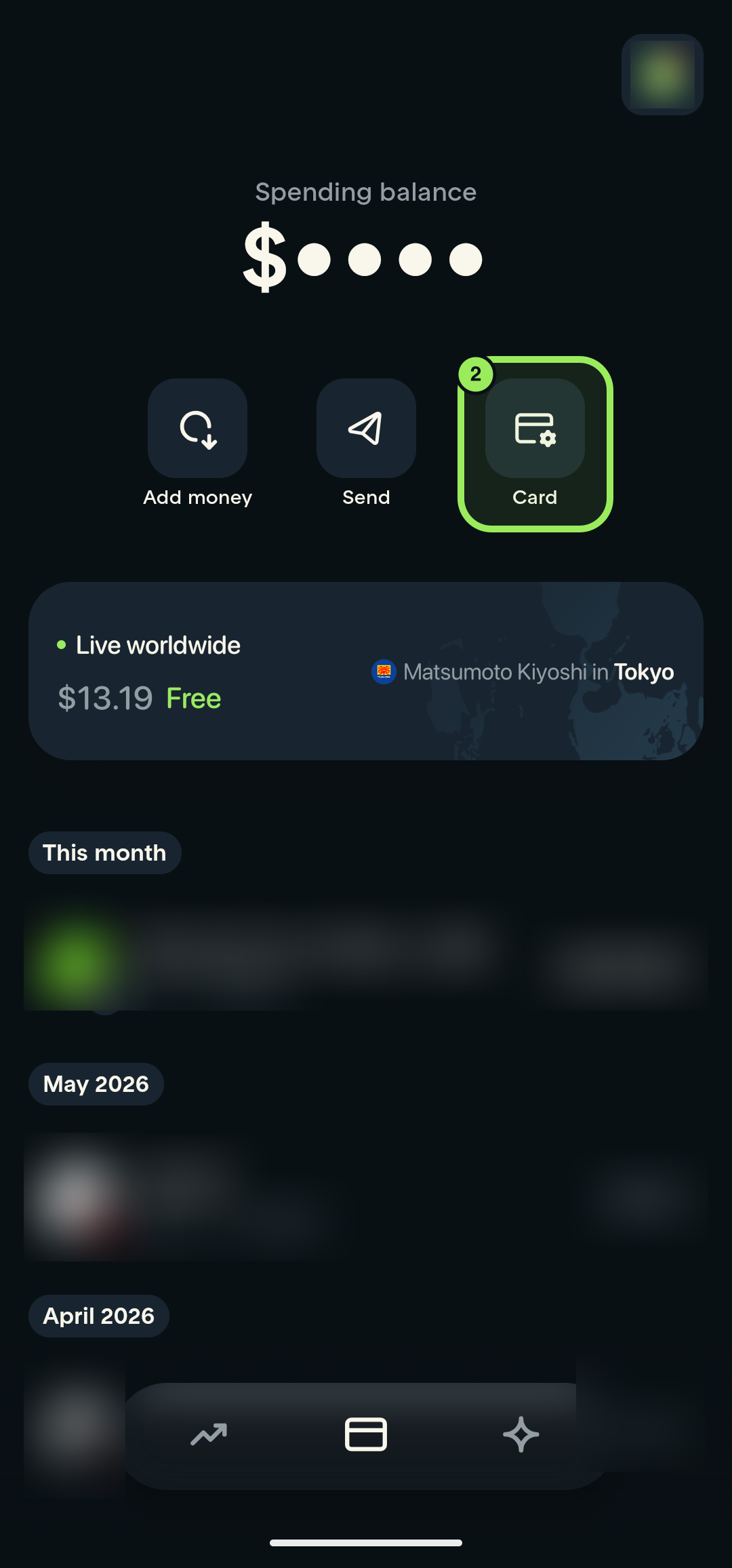
- On the Card page, tap the Card shortcut.
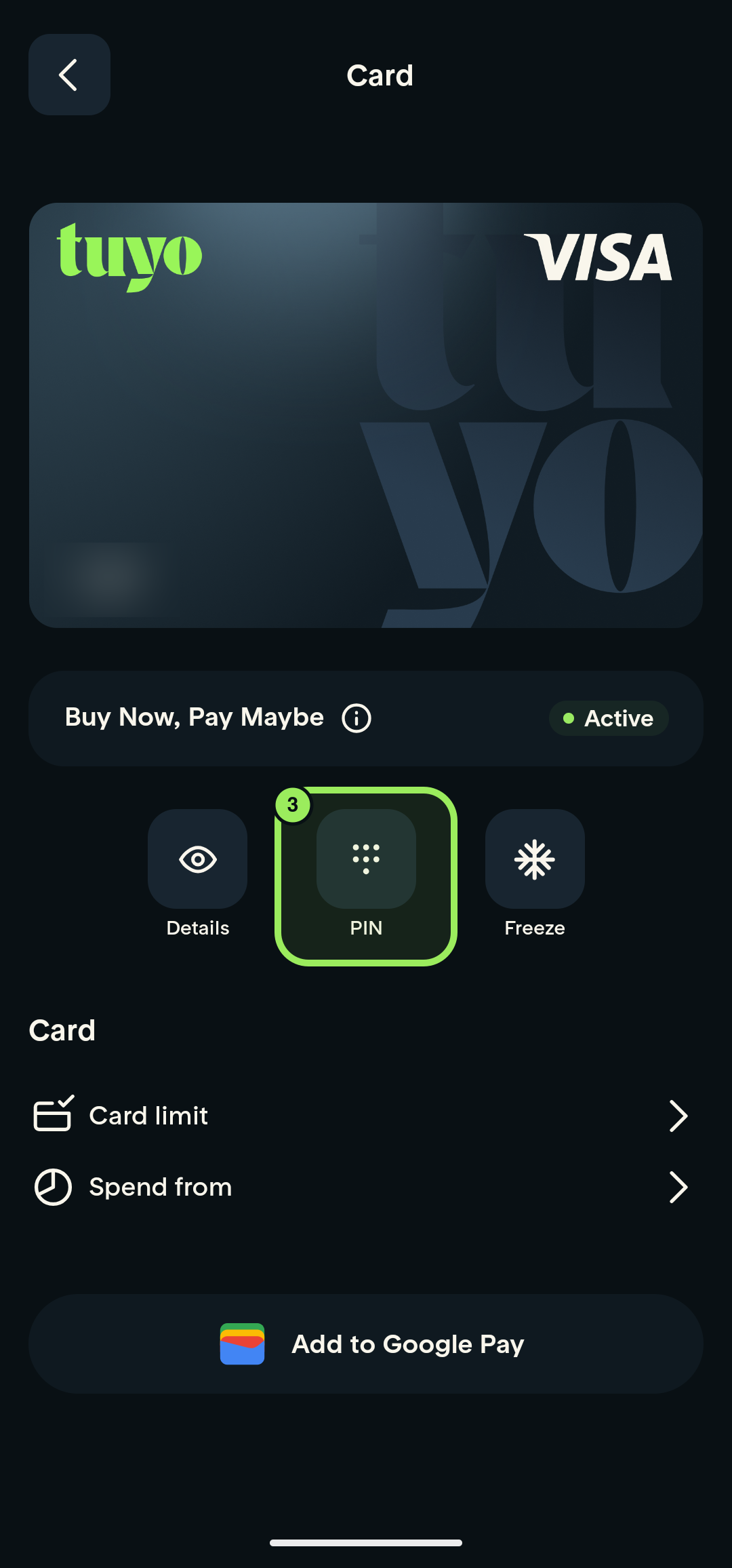
- Tap PIN below the card preview.
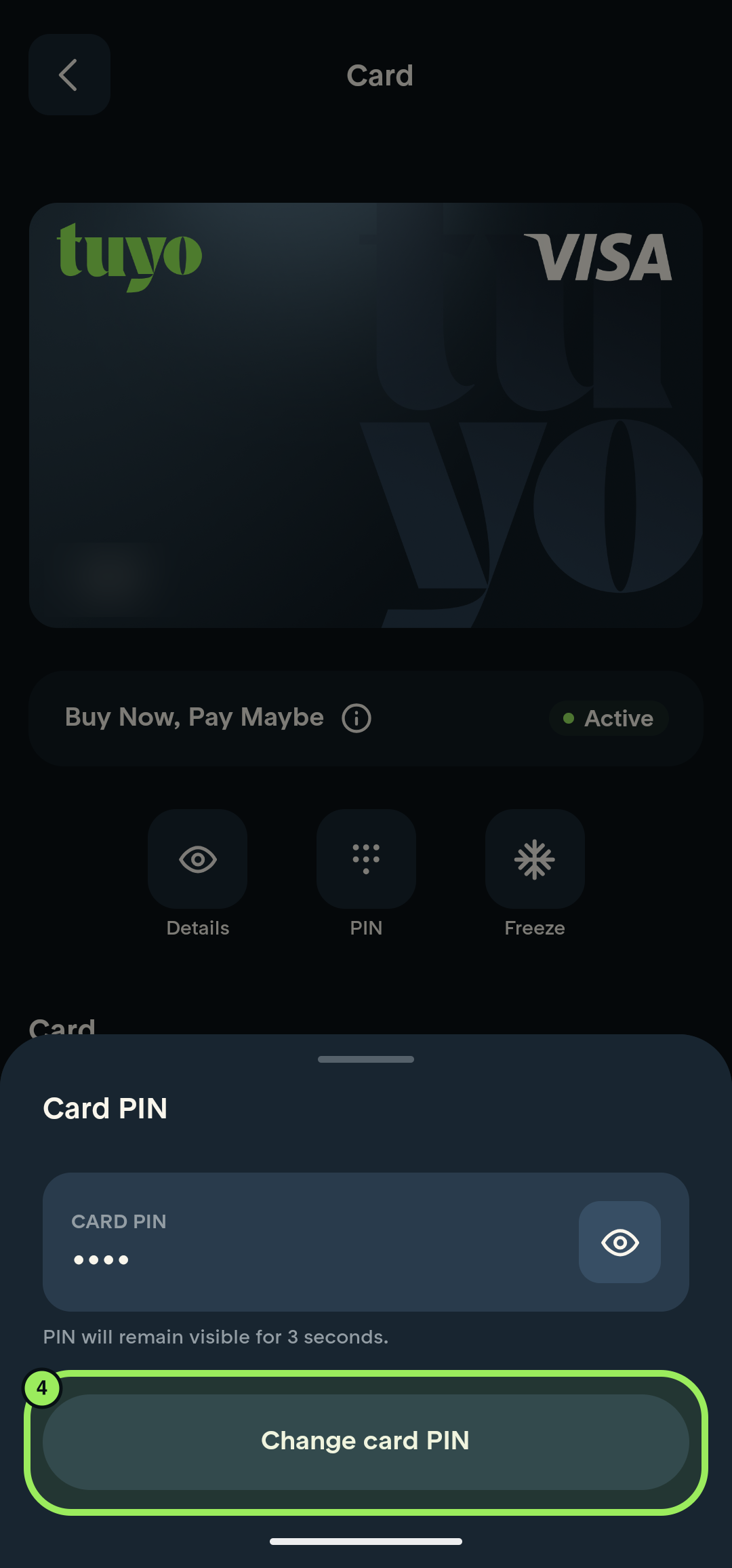
- Tap Change card PIN.
- Enter a new PIN under New PIN.
- Enter the same PIN under Repeat new PIN.
- Tap Change PIN.
Keep your PIN private
Choose a PIN that is difficult to guess. Never share it or include it in a screenshot or support message.
Step-by-step guide
1. Open the Card tab
On the main page, tap the Card icon in the bottom navigation.
2. Open card management
On the Card page, tap the Card shortcut.
3. Open PIN
Below the card preview, tap PIN.
4. Open Change card PIN
From the PIN panel, tap Change card PIN.
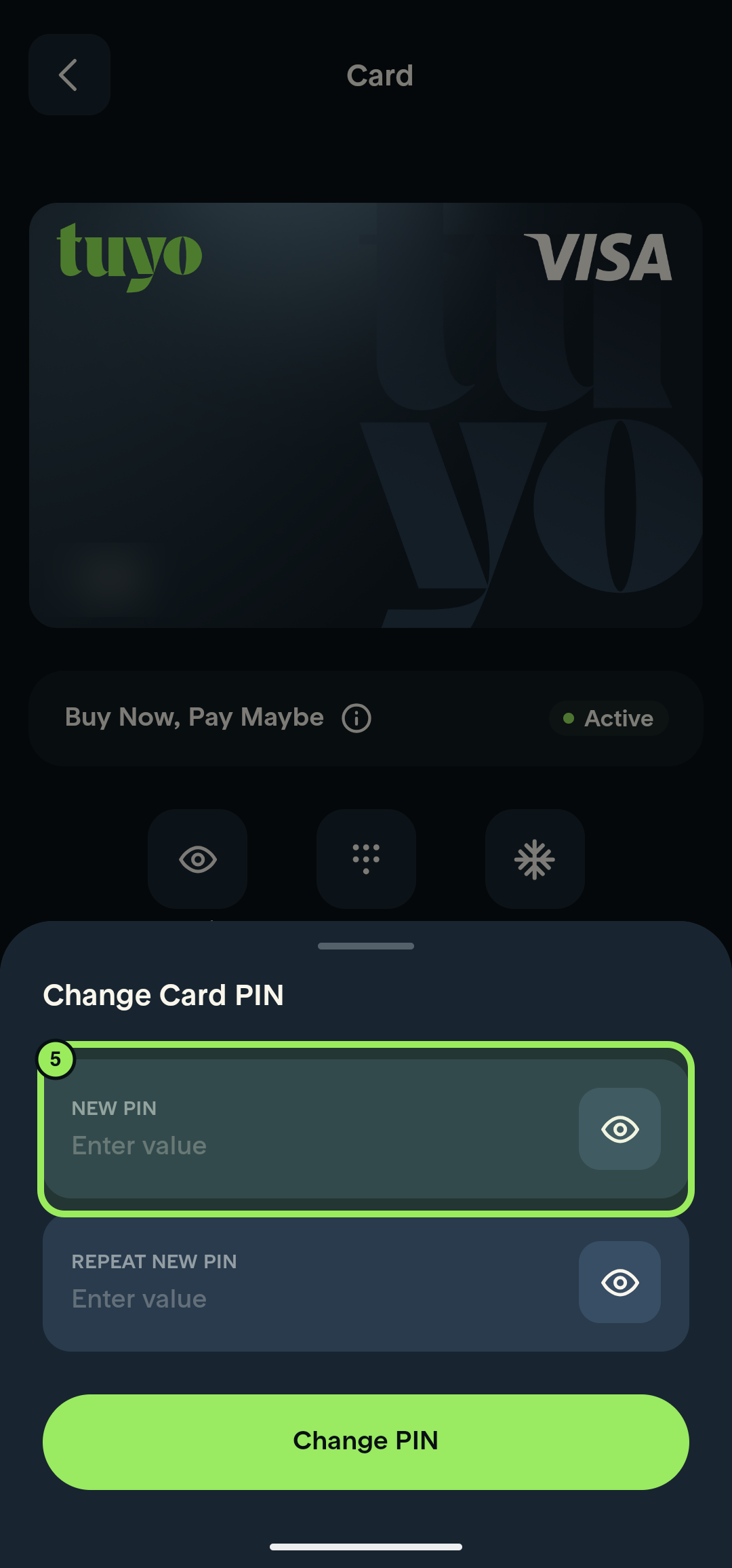
5. Enter a new PIN
Enter the PIN you want to use in the New PIN field.
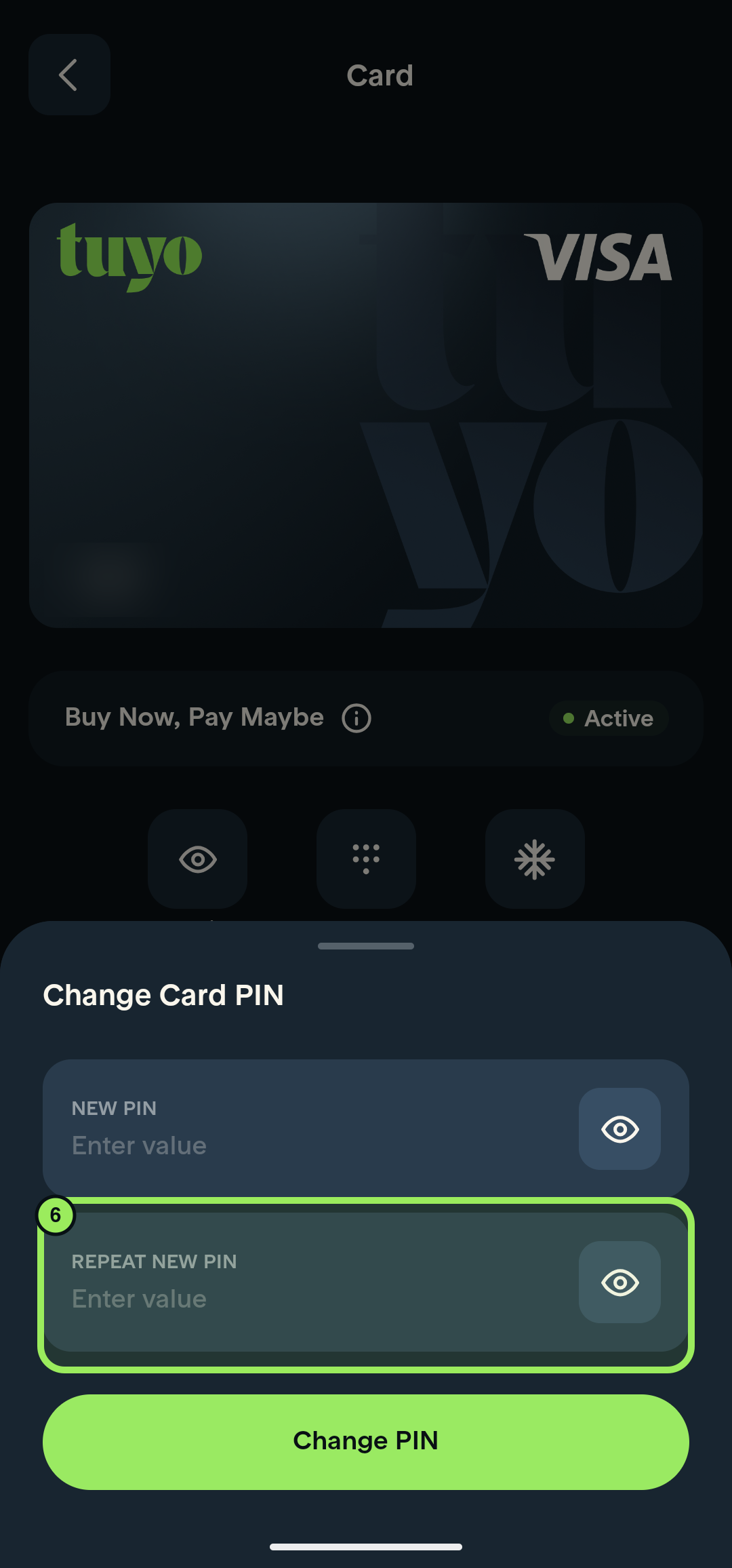
6. Repeat the new PIN
Enter the same PIN in the Repeat new PIN field.
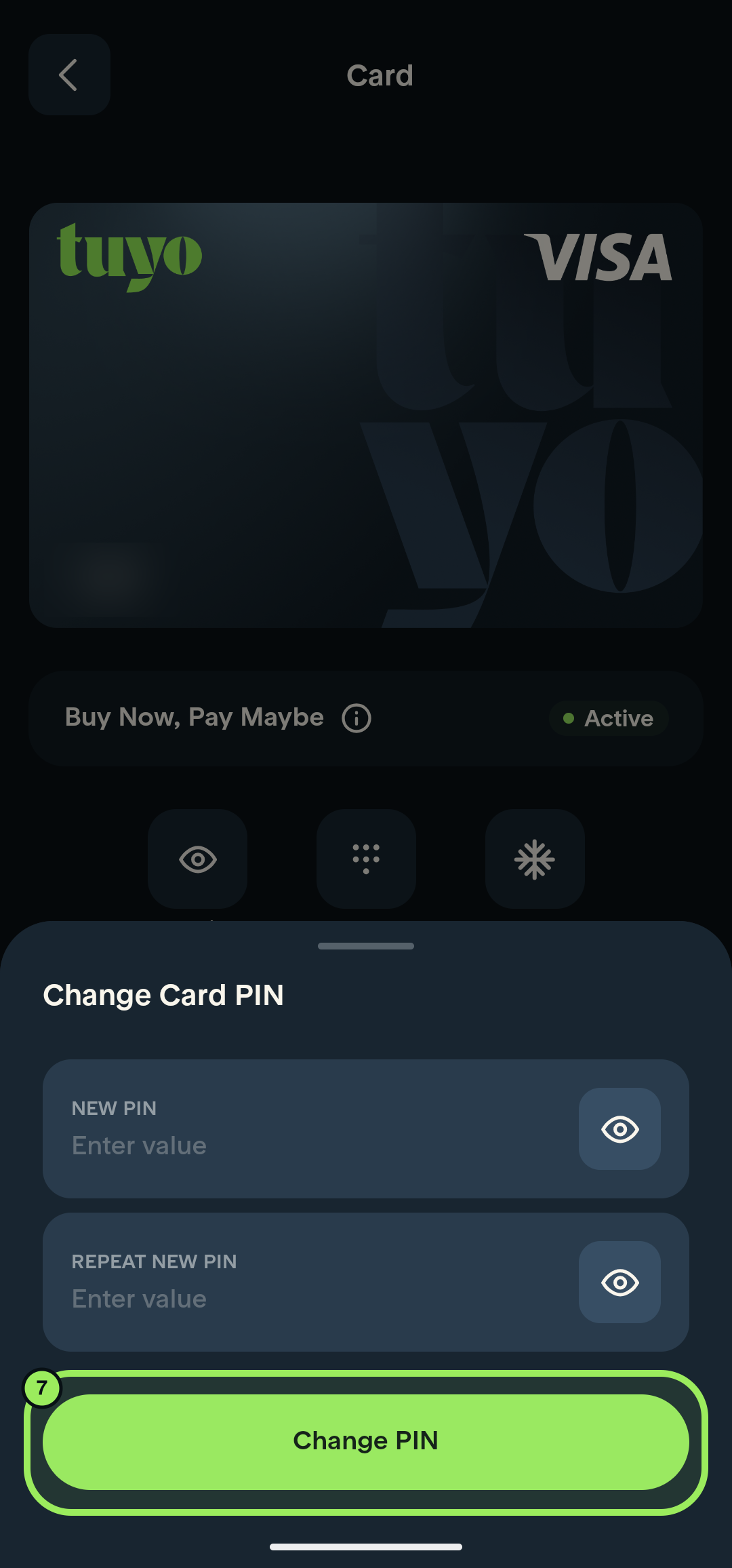
7. Apply the change
Confirm that both entries match, then tap Change PIN.
Keep your PIN private
Never send your PIN to anyone or store it in an unprotected note or screenshot.